
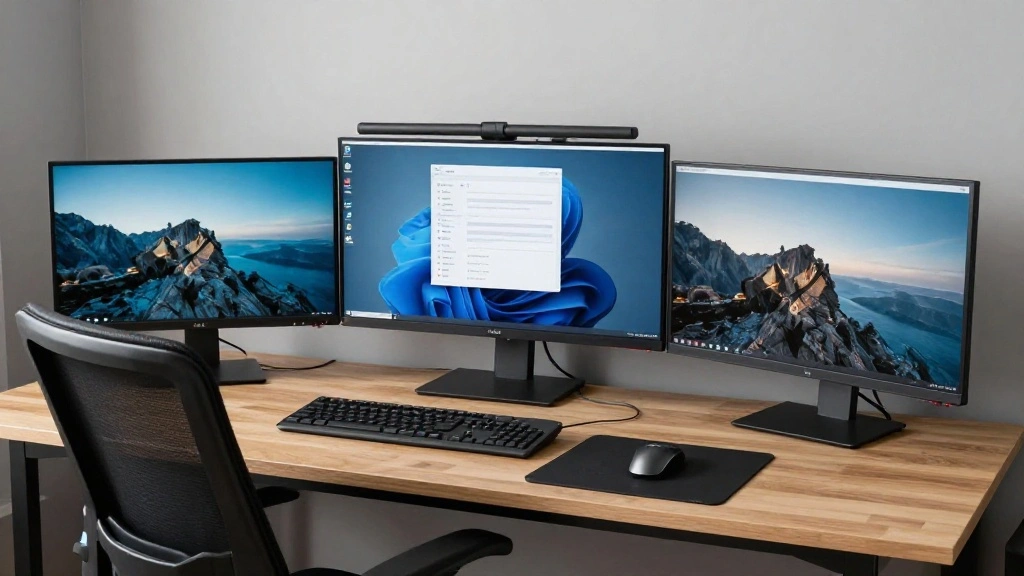
In today’s fast-paced digital world, having a single monitor may not cut it anymore. Whether you’re a gamer, a content creator, or simply someone who juggles multiple tasks, a dual monitor setup can dramatically enhance your productivity and gaming experience. The urgency to upgrade your workspace is real – you might be missing out on efficiency and enjoyment!
This guide will help you set up a dual monitor battlestation that not only looks good but also functions seamlessly. By following these steps, you will create a powerful workspace that allows you to multitask like a pro and enjoy games on a larger scale.
You will learn how to select the right monitors, connect them to your computer, configure display settings, and optimize your workspace for functionality and comfort. This guide is aimed at beginners and can be completed in 1-2 hours. Ready to transform your setup?
TL;DR Summary
- Gather essential materials for dual monitor setup.
- Connect monitors to your computer and configure settings.
- Optimize workspace for comfort and productivity.
- Follow troubleshooting tips to address common issues.
Recommended Products

Keep Your Desk Organized: By lifting 2 screens off the desktop, this computer monitor arm opens up valuable space for your keyboard, notebook, docking station or a simple, clutter-free work area. Built-in cable management guides wires along the arms, keeping cords out of sight and out of the way. Enjoy a tidy, modern workstation that looks as good as it feels to use.

Fits 13" to 27" Screens: Freestanding dual monitor mount holds two screens 13” to 27” and up to 22 lbs with 75x75mm or 100x100mm backside mounting holes. Keep power and AV cables clean and organized with detachable cable clips on the arms and center pole

Compatibility: To ensure compatibility with the dual monitor mount, your each monitor must meet three conditions at the same time: First, computer screens size range: 13 to 32 inches. Second, screen weight range: 4.4 to 19.8 lbs. Third, the back of the monitor screen must have VESA mounting holes with a pitch of 75x75mm or 100x100mm. We recommend carefully checking that your monitor meets all three conditions before purchasing.
TL;DR Summary
Editor’s Choice

HUANUO FlowLift™ Dual Monitor Stand, Fully Adjustable Gaming Monitor D…

Prerequisites/Materials Needed
- Two monitors (preferably the same size for uniformity)
- Monitor stands or arms (if needed)
- HDMI or DisplayPort cables (2)
- Power cables for monitors
- Computer with dual video output capability
- Screwdriver (if necessary)
- Surface cleaner (for monitor setup)
Recommended Products

The Anker Advantage: Join the 50 million+ powered by our leading technology.

IMPORTANT: This cable is not USB-A compatible. Signal direction is one-way only: DisplayPort (computer) → HDMI (display)
Prerequisites/Materials Needed
Editor’s Choice

Highwings 8K 10K 4K HDMI Cable 48Gbps 6.6FT/2M, Certified Ultra High Spe…

Windex Electronic Cleaning Wipes, Pre-Moistened Screen Wipes for TVs, Ph…

HUANUO FlowLift™ Dual Monitor Stand, Fully Adjustable Gaming Monitor D…
Skill Level & Time Estimate
Skill Level: beginner
Total time estimate: 1-2 hours
Recommended Products

【No Drill Mounted】Cable management tray can be assembled in as little as 3 minutes or less-simply. Side clips easily clampe the edge of desk, pass through the holes on the sides, and secure excess cables with baskets. Desk cable management supports inward or outward installation to meet your needs in different scenarios, and provides you with great convenience when collecting and organizing wires.

We used ChatGPT to analyze our reviews and determine the main benefits our customers received. Here is the summary:

Suptek Monitor Laptop Mount Stand, 2 in 1 Function Dual Monitor Arms Desk Mount
Skill Level & Time Estimate
Editor’s Choice
HUANUO FlowLift™ Dual Monitor Stand, Fully Adjustable Gaming Monitor D…

Under Desk Cable Management Tray No Drill, Metal Mesh Cable Management U…

StarTech USB-A 3.0 to Dual HDMI Adapter for Windows, Dual Monitor USB to…
Step 1: Choose the Right Monitors
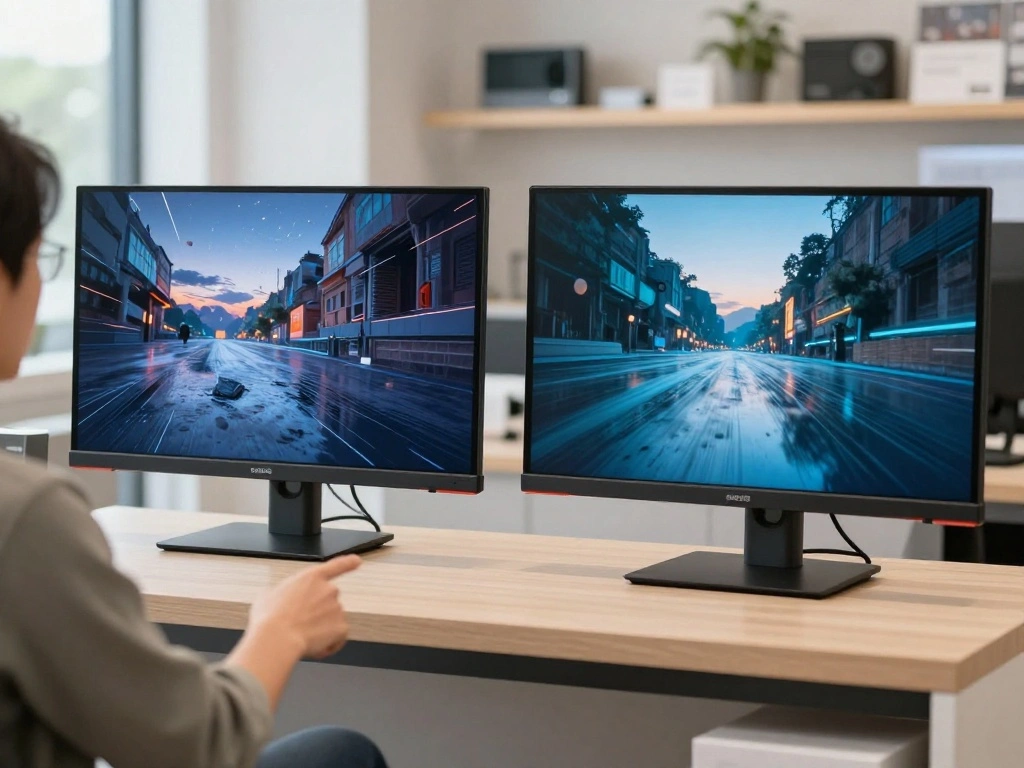
Begin by selecting two monitors that suit your needs. Consider factors like screen size, resolution, and refresh rate. Here’s how to choose:
- Determine the purpose: Are you gaming, working, or both?
- Look for monitors with similar specifications for a seamless experience.
- Check compatibility with your computer’s graphics card.
Warning: Avoid mismatched monitors as they can lead to display issues.
This step is crucial because having the right monitors ensures optimal performance and reduces strain on your eyes. Time estimate: 15-20 minutes.
Recommended Products

COMPATIBILITY: This adapter is only compatible with Windows and does not support macOS, ChromeOS or Linux; Works with all Windows X86/X64/ARM platforms: Intel, AMD, and Snapdragon X Copilot+ PC; Administrator rights are required to install the drivers

COMPATIBILITY: This adapter is only compatible with Windows and does not support macOS, ChromeOS or Linux; Works with all Windows X86/X64/ARM platforms: Intel, AMD, and Snapdragon X Copilot+ PC; Administrator rights are required to install the drivers

【Does not support MST on Mac OS 】This KOZYC USB-C adapter features 2x HDMI port, 1x USB 3.0 port, and 1x100W PD charging port, Note: Android system only supports AAA mode(mirror mode); macOS supports AAA, and ABB mode (does not support MST ABC mode); Windows OS supports AAA, ABB, ABA, and ABC mode.
Step 1: Choose the Right Monitors
Editor’s Choice

MSI MAG MT101G – Gas Spring Single Monitor Stand Arm, Supports 17-32″ an…

Samsung 27″ Odyssey G5 (G51F) Gaming Monitor – QHD (1440P), 180Hz, 1ms, …
Step 2: Gather Necessary Cables
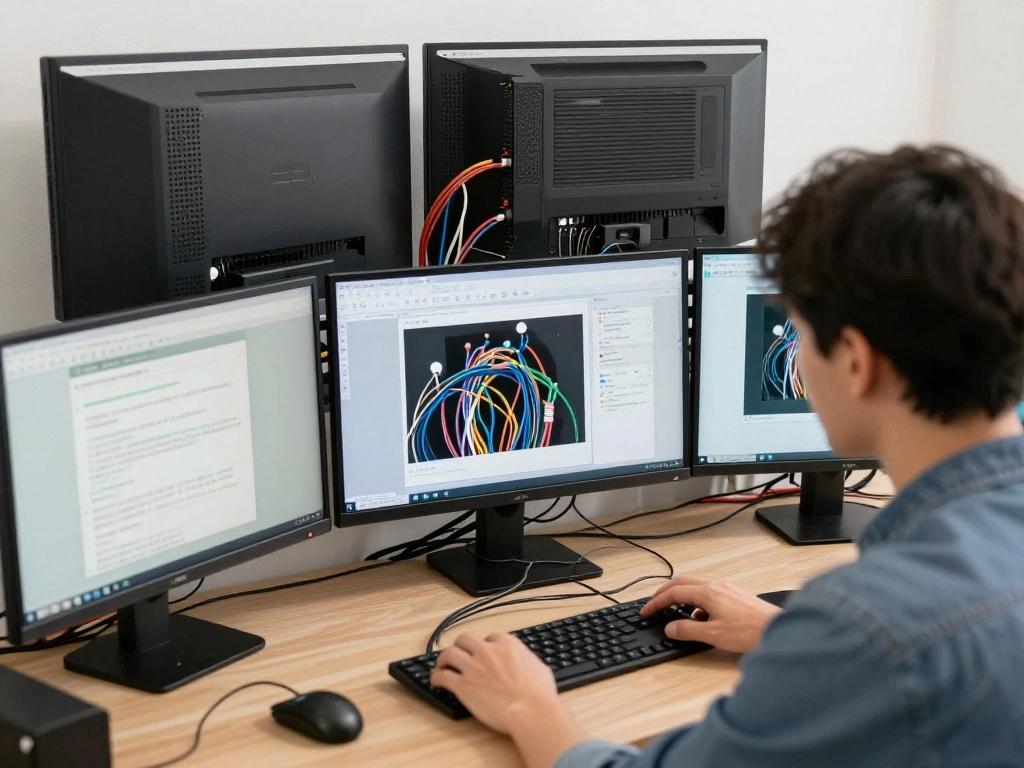
Once you’ve chosen your monitors, it’s time to gather the necessary cables. You will likely need either HDMI or DisplayPort cables. Follow these sub-steps:
- Check the ports on your monitors and computer.
- Purchase the appropriate cables if you don’t have them.
- Ensure you have enough length in the cables to reach from the monitors to the computer.
Pro Tip: Consider purchasing cable management tools to keep your workspace tidy.
Gathering the right cables ensures that you can connect your monitors without interruptions. Time estimate: 10-15 minutes.
Recommended Products

What You'll Get: One pack of 25 Windex Electronic Pre-Moistened Cleaning Wipes
![Electronic Wipes Screen Cleaner Streak-Free [2 Pack x40] Computer Screen Wipes, TV Screen Cleaner Wipes, Monitor Wipes for Smart TV, Laptop, iPhone, ipad and more - [Microfiber Cloth + 80 Wipes]](https://m.media-amazon.com/images/I/51HBx71eq5L._SL500_.jpg)
Electronic Wipes for Effortless, Gentle cleaning for your Precious Screens - With the ubiquity of electronics in our daily lives, it's natural to seek out the simplest and most efficient method for cleaning them. That's where EVEO Electronic Screen Cleaning Wipes shine. This convenient screen cleaner wipes for electronic devices will instantly help eliminate dust, smudges, fingerprints, oil, or watermarks from your device without any additional effort.

✓ Screen Wipes That Actually Work – EVEO Screen Wipes remove dust, oil and fingerprints without leaving streaks. Each pre-moistened wipe is 6×6 inch microfiber-soft and quick-drying, making them the perfect screen cleaner wipes for electronics, computers, phones and monitors. Enjoy a clear, streak-free view every time.
Step 2: Gather Necessary Cables
Editor’s Choice
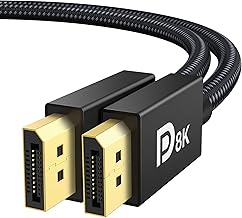
IVANKY 8K DisplayPort Cable 1.4, VESA Certified DP Cable 6.6ft (8K@60Hz,…

10K 8K HDMI 2.1 Cable 2-Pack 6.6FT, Highwings Certified 48Gbps Ultra Hig…

Alex Tech 10ft – 1/2 inch Cord Protector Wire Loom Tubing Cable Sleeve S…
Step 3: Connect the Monitors
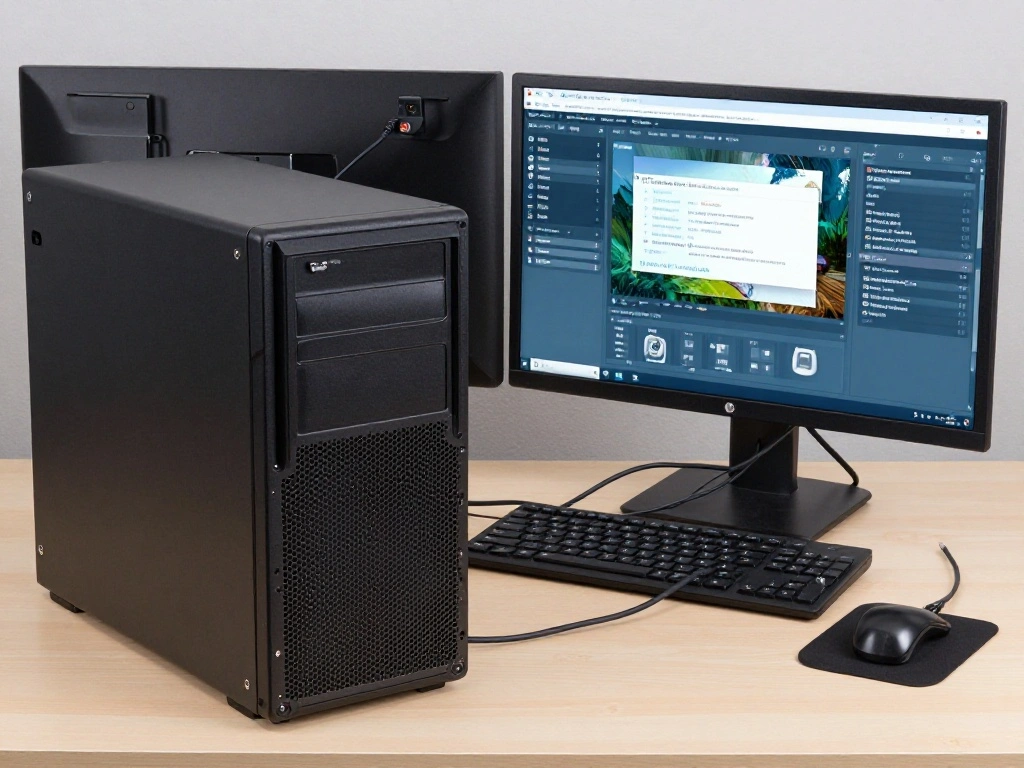
Now it’s time to connect your monitors to your computer. Here’s how:
- Power off your computer.
- Connect the first monitor using the appropriate cable.
- Connect the second monitor in the same way.
Warning: Always power off your computer before making connections to prevent damage.
This step is important because it establishes the physical connection needed for the displays to work. Time estimate: 10 minutes.
Recommended Products

Compatibility - Fits 13" to 32" computer monitors weighing up to 10 kg each with 75x75mm or 100x100mm backside mounting holes. --Patented--

Compatible with Wide Screens: The ErGear heavy-duty dual monitor arm is designed to fit most 13″–32″ flat or curved monitors, supporting up to 19.8 lbs, and it's compatible with VESA mounting patterns of 75x75mm or 100x100mm. Be sure to verify your monitor’s VESA pattern, size, and weight before purchasing to ensure a perfect fit.

Universal Monitor Desk Mount - The dual monitor mount fits flat and curved screens 4.4lbs - 17.6 lbs in weight and 17-32 inches diagonal; compatible with VESA patterns 75x75 mm and 100x100 mm. Double-monitor users need a break, too. Let's not let the strain be in the neck and back regions of the body. Enjoy the benefits of monitors that float above your desk and see how much space and productivity you can gain.
Step 3: Connect the Monitors
Editor’s Choice

IVANKY 8K DisplayPort Cable 1.4, VESA Certified DP Cable 6.6ft (8K@60Hz,…

Highwings 8K 10K 4K HDMI Cable 48Gbps 6.6FT/2M, Certified Ultra High Spe…
Step 4: Power On and Configure Displays
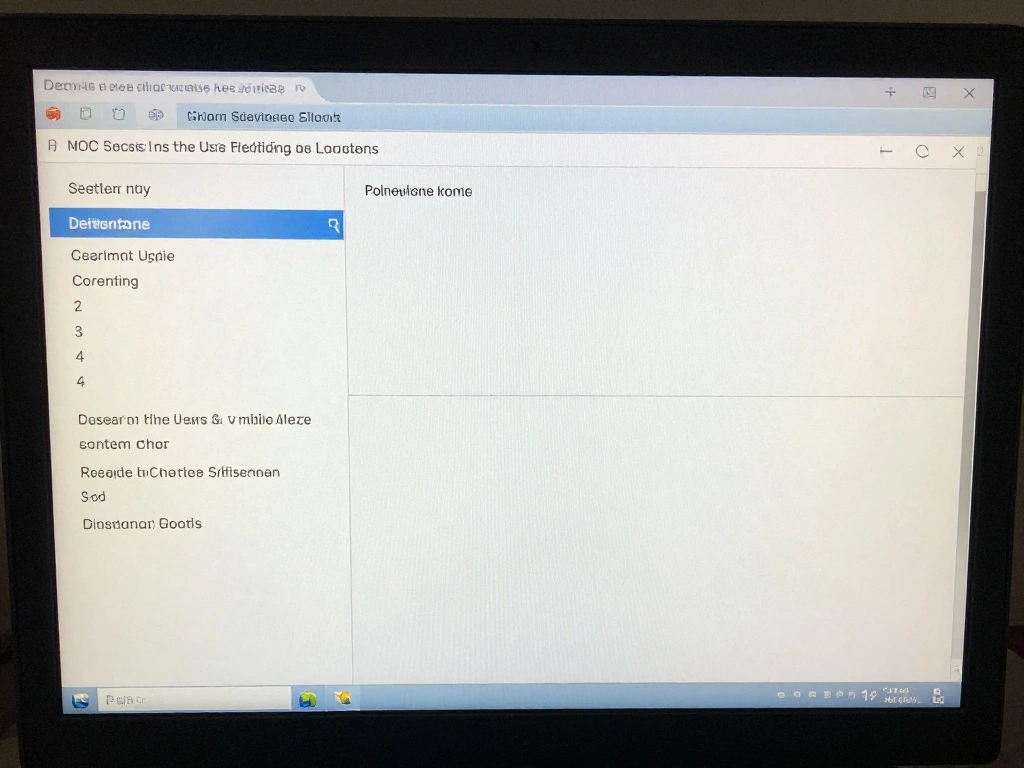
Once everything is connected, power on your computer and configure the display settings:
- Right-click on your desktop and select ‘Display settings.’
- Find the option to ‘Detect’ your monitors.
- Arrange the monitors by dragging and placing them in the desired layout.
Pro Tip: Set your main display for applications that require focus.
This step is essential for ensuring that your dual monitor setup functions as intended, allowing you to utilize both screens effectively. Time estimate: 15-20 minutes.
Recommended Products

Versatile Full HD Dual Pack: Elevate your home office with this 24 Inch 1080p (1920 x 1080) dual monitor set featuring a smooth 120Hz refresh rate; the IPS panels and frameless design deliver consistent colors and wide viewing angles, specifically optimized for seamless multi-display productivity

Dual 4K Monitors For Windows & ChromeOS: Equipped with USB to DisplayPort and HDMI outputs, this adapter enables connection to two 4K monitors (3840x2160 @ 60Hz) or lower resolutions like 1080p. DisplayLink driver auto-installs via Windows Update, no manual download for most users. Designed for Windows and ChromeOS.

Flexible Expandability: This versatile laptop docking station dual monitor setup includes dual HDMI and DisplayPort outputs, Gigabit Ethernet, audio jack, and six USB 3.0 ports. It supports both USB-C and USB 3.0 host connections - making it the perfect USB docking station for expanded connectivity.
Step 5: Adjust Resolution and Orientation
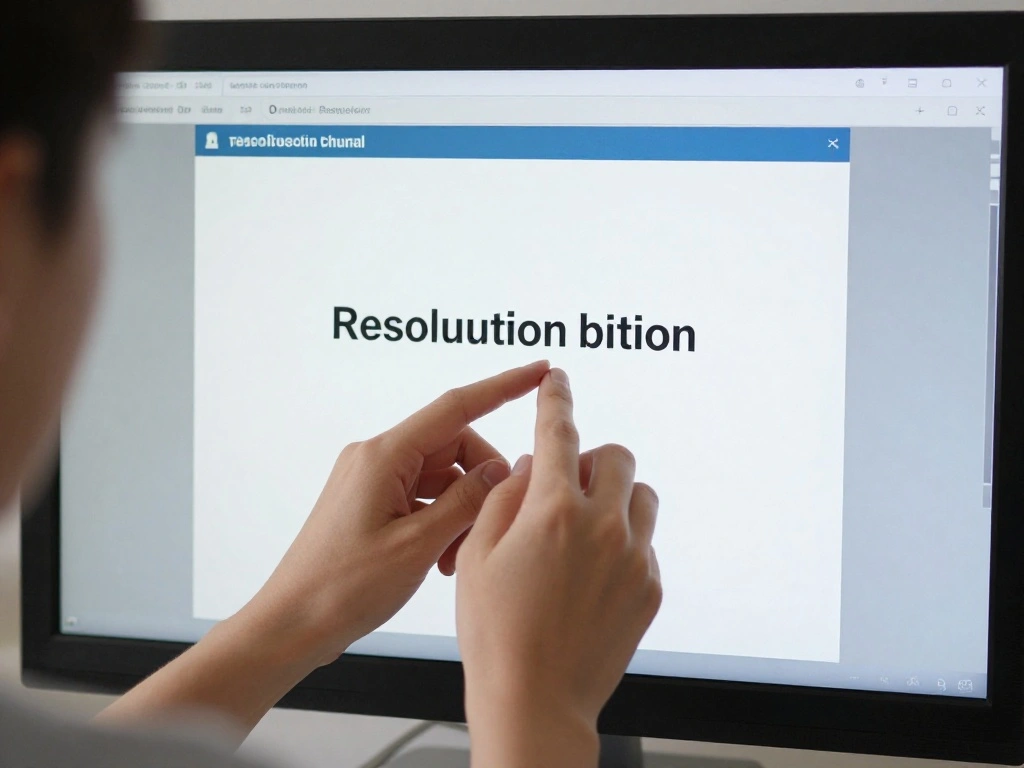
After configuring the displays, adjust the resolution and orientation for optimal viewing:
- In the same ‘Display settings’ menu, select each monitor.
- Choose the recommended resolution for each monitor.
- Select the orientation (landscape or portrait) based on your preference.
Warning: Incorrect resolution settings can cause display issues.
This adjustment is crucial because the right resolution ensures clarity and reduces eye strain. Time estimate: 10-15 minutes.
Recommended Products

Large Capacity and Durable. The cable tray size 36"L x 5.5"W x 5.5"H (The product images include detailed dimension diagrams. Please measure your table before purchasing to select the appropriate size.), it fits all size adapters and sockets, holds and hides everything under your table. It is ideal cable management under desk.

✨ [Engineered for Standing Desks] The ultimate companion for sit-stand workflows. This expansive 47.8" tray moves with your desk, keeping cables contained and off the floor to prevent snagging when raising height. Covers the full width for a uniform look.

【25'' Large Size】The 25'' cable management provides enough space for all your cables. Desk cable management can withstand a weight of approximately 15 lbs. This cable tray perfect for your standing desk and home.
Step 5: Adjust Resolution and Orientation
Editor’s Choice
HUANUO FlowLift™ Dual Monitor Stand, Fully Adjustable Gaming Monitor D…

Calibrite Display Pro HL Monitor Calibration Colorimeter for LCD Mini LE…
Highwings 8K 10K 4K HDMI Cable 48Gbps 6.6FT/2M, Certified Ultra High Spe…
Step 6: Optimize Workspace Setup
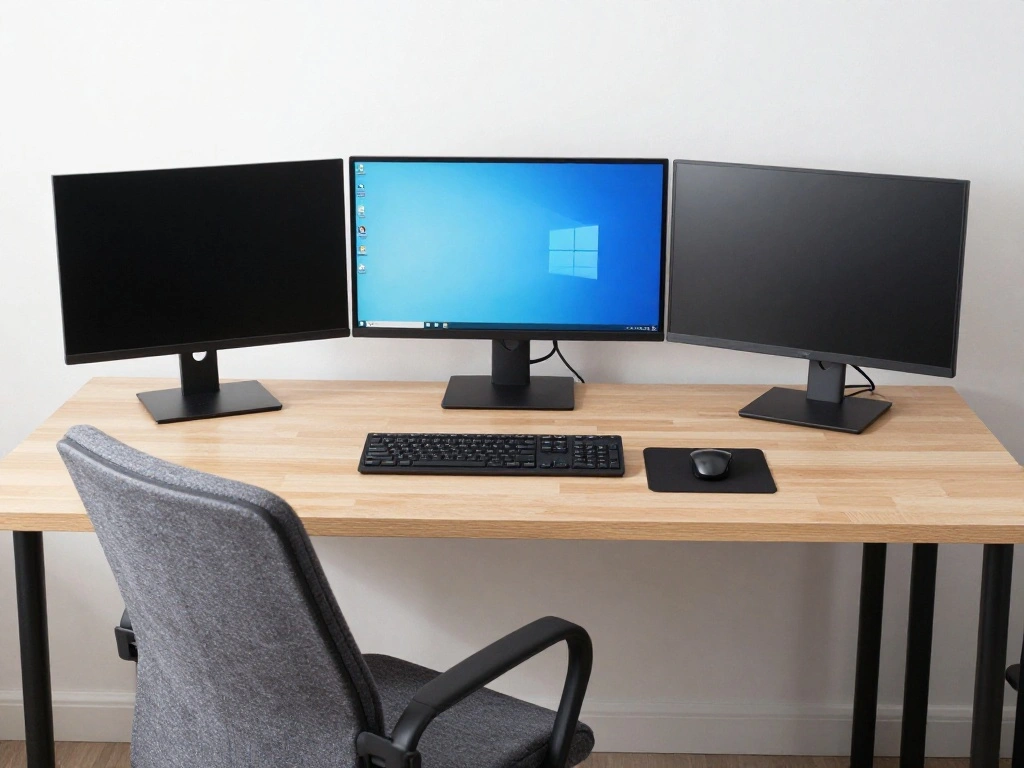
Now, let’s optimize your workspace for comfort and efficiency:
- Adjust the height of the monitors so the top is at eye level.
- Arrange your keyboard and mouse for easy access.
- Consider cable management options to reduce clutter.
Pro Tip: Use monitor stands to elevate screens and improve ergonomics.
This step is important for preventing physical strain and promoting better posture while working or gaming. Time estimate: 15-20 minutes.
Recommended Products

Dual Monitor Split & Extend Support – Connect a single HDMI source to two external displays for mirrored or extended viewing. Ideal for boosting productivity with a 3-screen setup (laptop display + 2 monitors).
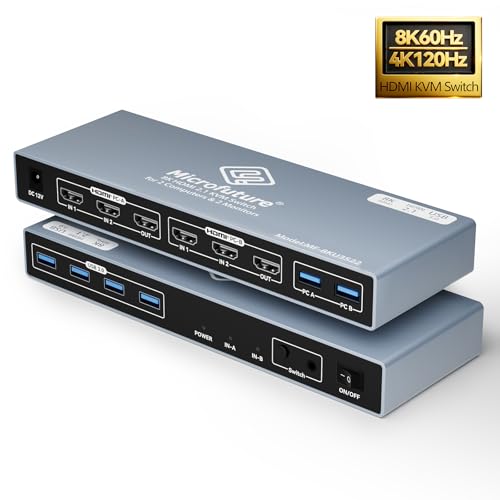
DUAL MONITOR SUPPORT: Control two computers across two monitors with HDMI 2.1 compatibility, supporting crystal clear 8K@60Hz or 4K@120Hz resolution

【Dual 4K@60Hz Extended Displays】Monitor splitter for dual monitor display, transform your laptop into a productivity powerhouse,! This USB-to-HDMI adapter adds two crystal-clear 4K monitors (up to 60Hz) via a single USB-C/USB-A port. Perfect for multitasking, office work, or coding—seamlessly compatible with Mac M1/M2/M3/M4/M5/Neo and Windows PCs. (Note: This displaylink adapter Not for gaming/HDCP content.)
Step 6: Optimize Workspace Setup
Editor’s Choice

Wireless Keyboard and Mouse Combo, 2.4G Full Size Wave Keys Ergonomic Ke…

Alex Tech 10ft – 1/2 inch Cord Protector Wire Loom Tubing Cable Sleeve S…
Step 7: Test the Setup
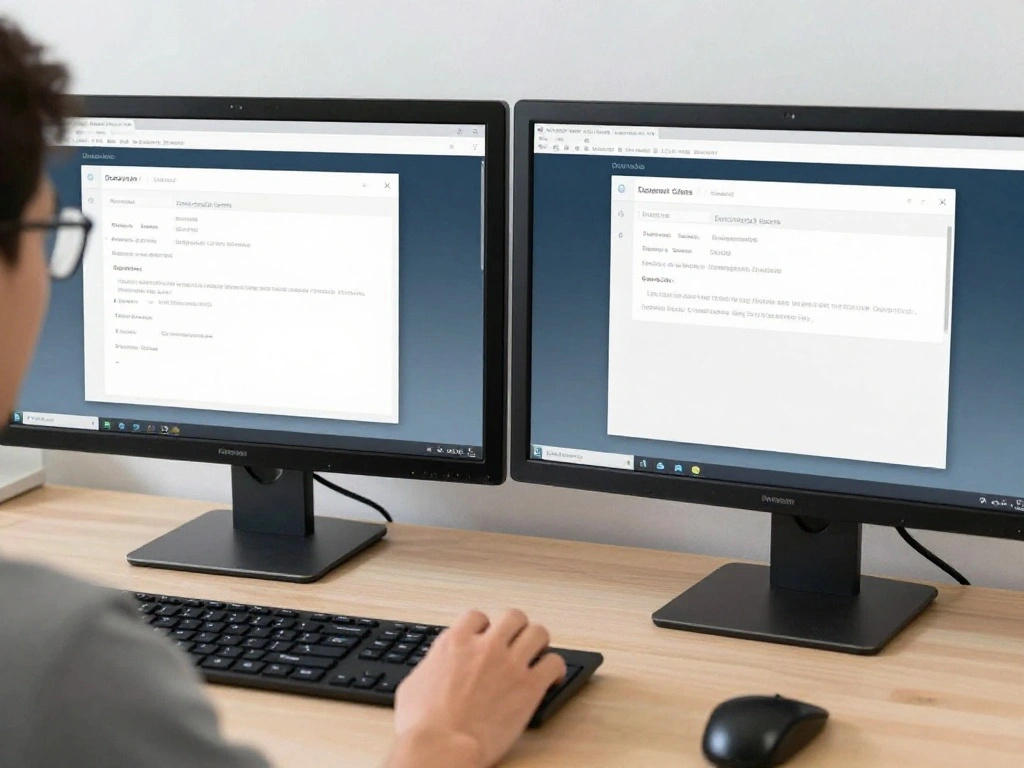
Before getting to work or play, test your new dual monitor setup:
- Open various applications and drag them across both screens.
- Check for any lag or display issues.
- Adjust any settings as necessary.
Warning: Pay attention to any flickering or distortion, which might indicate a connection issue.
Testing ensures that everything is functioning correctly, allowing you to enjoy a seamless experience. Time estimate: 10-15 minutes.
Recommended Products

【120 Count Bigger Size】Archxx Screen Cleaner,6"x6" cleaning wipes are ideal size as computer screen cleaner wipes, laptop screen cleaner, tablet,phone screen cleaner wipes, TV screen cleaner wipes, OLED screen cleaner, LCD screen cleaner, and many more, for better usage, please read the TIPS below in the product description.

THE BEST ELECTRONIC WIPES ARE SAFE FOR YOUR ALLYOUR GADGETS: With electronics now considered as everyday essentials, it’s no surprise that you’re in search of the easiest and most effective way to clean them. That’s where the MIRACLE WIPES for Electronic Screen Cleaning come in. These convenient screen wipes for electronics will instantly help remove dust, static, smudges, fingerprints, oil, or watermarks from your device without any additional effort on your part.

What You'll Get: Three packs of 25 Windex Electronic Pre-Moistened Cleaning Wipes
Step 7: Test the Setup
Editor’s Choice

Highwings 4K DisplayPort to HDMI, Uni-Directional Only, 6.6ft DP (Source…
Highwings 8K 10K 4K HDMI Cable 48Gbps 6.6FT/2M, Certified Ultra High Spe…
Step 8: Personalize Your Setup
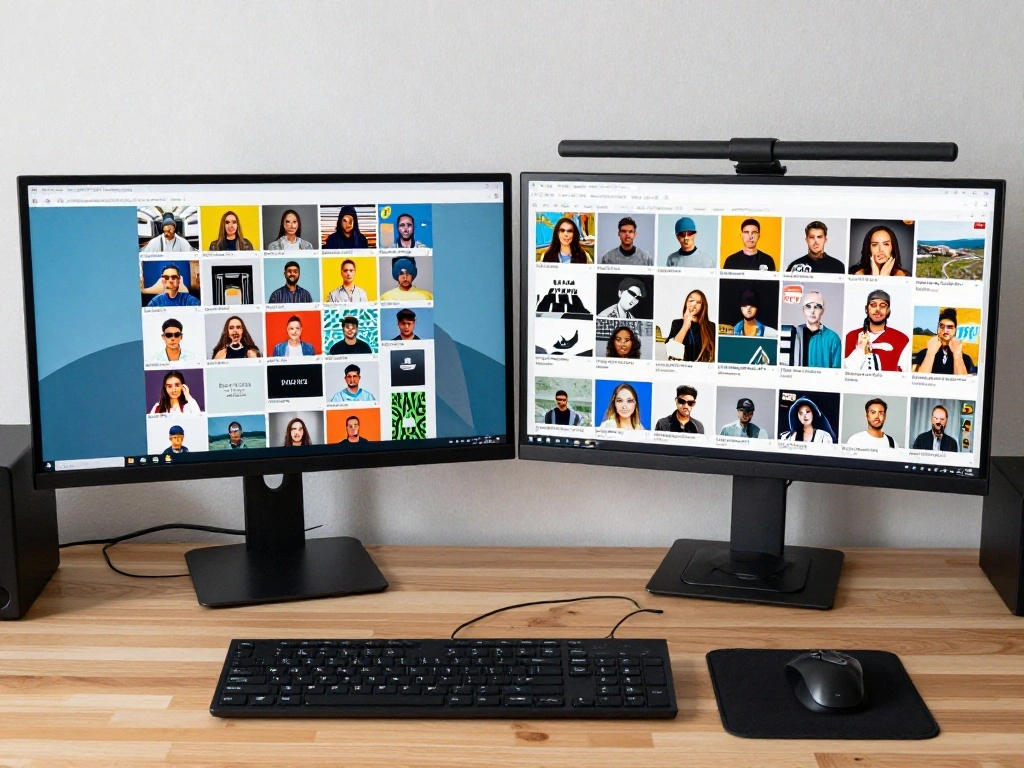
Finally, personalize your dual monitor battlestation:
- Add wallpapers or themes that inspire you.
- Organize your desktop for easy access to files.
- Consider adding accessories like a desk lamp or plants for aesthetics.
Pro Tip: Use software tools to manage windows across screens effectively.
Personalizing your setup creates an environment that reflects your style and keeps you motivated. Time estimate: 15-20 minutes.
Step 8: Personalize Your Setup
Editor’s Choice

LED Desk Lamp with USB Ports,Touch Desk Lamps for Home Office with 5 Col…

Costa Farms Live Indoor House Plants (3-Pack), Hand Selected Easy to Mai…

WALI Desk File Organizer, 4 Tier Desktop Paper Letter Tray Organizer wit…
Step 9: Maintain Your Setup
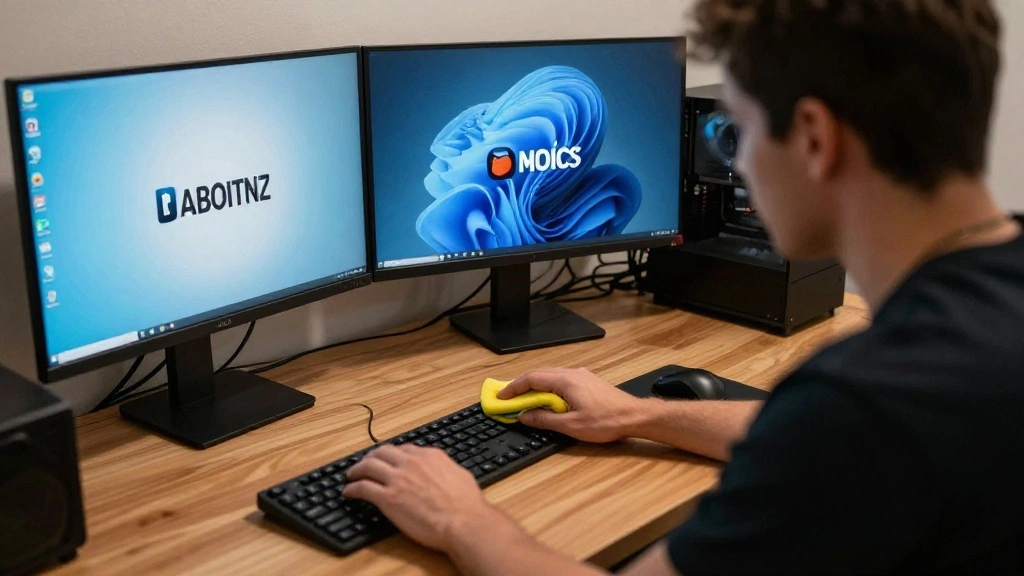
To ensure long-lasting performance, maintain your dual monitor setup:
- Regularly clean your monitors to avoid dust buildup.
- Check cables for wear and tear.
- Update drivers and software as needed.
Warning: Poor maintenance can lead to performance issues over time.
This step is vital for keeping your setup in optimal condition, ensuring a great experience in the long run. Time estimate: 10-15 minutes.
Step 9: Maintain Your Setup
Editor’s Choice

HOMEXCEL Microfiber Cleaning Cloth 210GSM, Pack of 12, Size:11.5″ x 11.5…
Alex Tech 10ft – 1/2 inch Cord Protector Wire Loom Tubing Cable Sleeve S…

Driver Genius 18 DEMOVERSION – Gratis Treiber prüfen – keine Installati…
Pro Tips
- Monitor Calibration: Regularly calibrate your monitors for accurate colors.
- Use Task View: Utilize Windows Task View for efficient multitasking.
- Shortcut Keys: Learn shortcut keys for moving windows between monitors.
- Adjust Brightness: Adjust brightness to reduce eye strain during long hours.
- Consider Third-Party Software: Use software like DisplayFusion for advanced window management.
Pro Tips
Editor’s Choice

livho High Tech Blue Light Glasses – Advanced Blue Light Blocking Comput…
Calibrite Display Pro HL Monitor Calibration Colorimeter for LCD Mini LE…

Single LCD Computer Monitor Free-Standing Desk Stand Mount Riser for 13 …
Common Mistakes to Avoid
Warning: Mismatched resolutions can lead to display issues. Always set both monitors to their recommended resolution.
Warning: Forgetting to secure cables can cause accidents. Use cable ties to keep everything organized.
Warning: Overlooking ergonomics can lead to discomfort. Adjust monitors to eye level and maintain a proper chair height.
Common Mistakes to Avoid
Editor’s Choice

ErGear Single Monitor Arm, Fully Adjustable Monitor Mount for 13–34 In…
![Lamicall 8 Pack Cord Organizer, [1s Lock] Spring Cable Management Clips ...](https://m.media-amazon.com/images/I/71uQ8L3QzHL._AC_UY218_.jpg)
Lamicall 8 Pack Cord Organizer, [1s Lock] Spring Cable Management Clips …

Primy Drafting Chair Tall Office Chair with Flip-up Armrests Executive E…
Troubleshooting Section
Problem: One monitor is not detected.
Solution: Check connections and power, then restart your computer.
Problem: Display flickering.
Solution: Ensure cables are securely connected and update your graphics drivers.
Problem: Resolution issues.
Solution: Go to display settings and select the correct resolution for each monitor.
Problem: Monitors are not aligned.
Solution: Adjust display arrangement in the settings menu.
Problem: Color discrepancies.
Solution: Calibrate each monitor using built-in display settings.
Troubleshooting Section
Editor’s Choice
StarTech USB-A 3.0 to Dual HDMI Adapter for Windows, Dual Monitor USB to…

BENFEI 4K DisplayPort to HDMI Adapter, Uni-Directional DP 1.2 Computer t…
Variations/Alternative Methods
- Using a USB-C hub for laptop setups: Ideal for laptops with limited ports.
- Employing wireless display technology: Great for reducing clutter.
- Utilizing a KVM switch: Perfect for switching between multiple computers.
Variations/Alternative Methods
Editor’s Choice

Hearvo USB 3.0 HDMI KVM Switch 1 Monitors 2 Computers, 4K@60Hz KVM Switc…

Anker Laptop Docking Station Dual Monitor, 8-in-1 USB C Hub, 4K Dual Mon…

2027 Upgraded Wireless HDMI Display Dongle Adapter, Transmitter Streamin…
FAQs
What if I don’t have two identical monitors? You can use different monitors, but keep in mind that mismatched sizes or resolutions might affect usability.
How long should I allow for setup? Expect to spend about 1-2 hours, depending on your familiarity with technology.
Is it safe to leave monitors on all the time? It’s recommended to turn them off when not in use to prolong their lifespan.
What if my computer doesn’t recognize the second monitor? Check your connections, restart your computer, and ensure your graphics card supports dual displays.
Can I use a TV as a second monitor? Yes, as long as it has the necessary input ports and a compatible resolution.
FAQs
Editor’s Choice
![avedio links HDMI Splitter 1 in 2 Out [w/ 4 Ft Hdmi Cable]Not for Extend...](https://m.media-amazon.com/images/I/61gjRYw7R7L._AC_UY218_.jpg)
avedio links HDMI Splitter 1 in 2 Out [w/ 4 Ft Hdmi Cable]Not for Extend…
ErGear Single Monitor Arm, Fully Adjustable Monitor Mount for 13–34 In…

19-Inch 1U Metal Horizontal Rackmount Cable Manager with 5 D-Rings (1UCM…
Conclusion
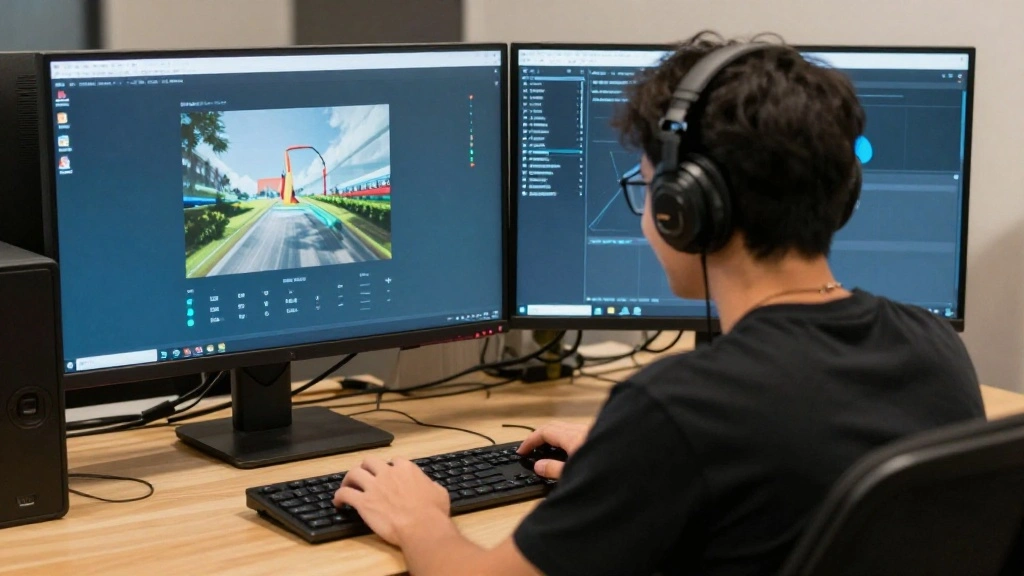
Congratulations! You’ve successfully set up your dual monitor battlestation. This setup not only enhances your productivity but also makes your workspace visually appealing and efficient.
Now that you’re equipped with this new setup, explore ways to optimize your workflow or dive into gaming. Don’t forget to keep your monitors maintained and consider personalizing your space further. Enjoy your new dual monitor experience!