
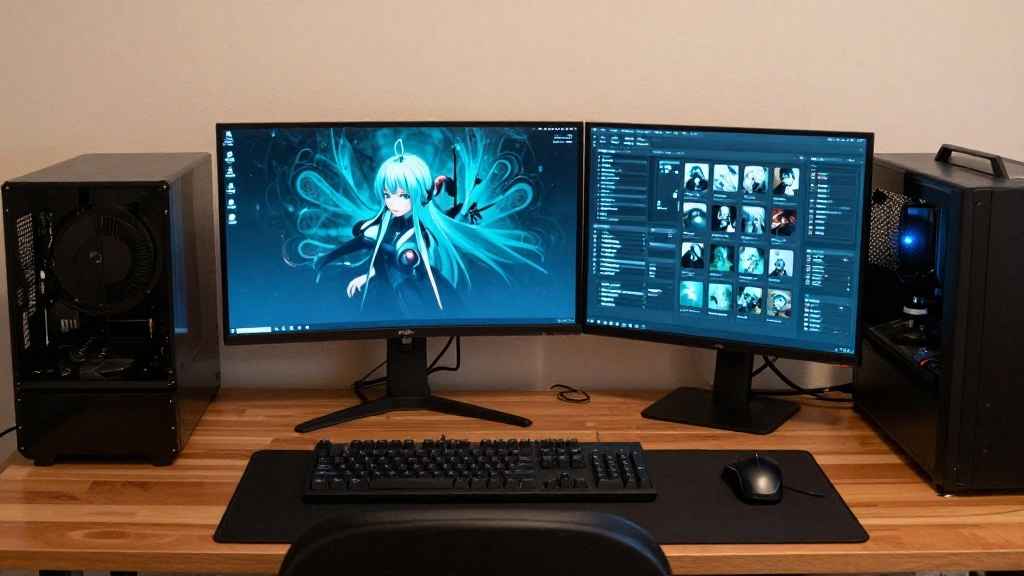
Are you ready to create a workspace that enhances your productivity and gaming experience? Building your first battlestation can feel overwhelming, especially if you’re unsure where to start. Many beginners struggle with choosing the right components, arranging their setup, and ensuring everything functions smoothly. But don’t worry! This guide offers a clear path to designing a battlestation that meets your needs.
By the end of this guide, you will have a personalized battlestation tailored to your preferences, equipped with all the essential tools to elevate your workflow or gaming experience. You will learn how to select components, organize your space, and troubleshoot common issues. Skill Level: beginner. Estimated Time: 2-3 hours.
Let’s get started and transform your workspace into a battlestation that inspires you to achieve your goals!
TL;DR Summary
- Gather essential materials and tools.
- Follow step-by-step instructions for setup.
- Learn troubleshooting tips and common mistakes to avoid.
- Celebrate your completed battlestation!
TL;DR Summary
Editor’s Choice

GTPLAYER Gaming Chair, Computer Chair with Footrest and Lumbar Support, …


Nettbe 60 PCS 6 Inches Reusable Cable Ties, Adjustable Cord Straps Wire …

DUMOS 31 Inch Small Computer Desk for Home Office, Gaming Writing Desks …
Prerequisites/Materials Needed
- Desk: A sturdy desk (at least 60 inches wide)
- Chair: An ergonomic office chair
- Monitor: At least one 24-inch monitor
- Computer: Desktop or laptop with sufficient specs
- Keyboard: Mechanical or membrane keyboard
- Mouse: Gaming mouse with adjustable DPI
- Headset: Comfortable gaming headset
- Cable Management: Cable ties or organizers
- Lighting: LED strip lights or a desk lamp
- Additional Accessories: Mousepad, speakers, and storage solutions
Prerequisites/Materials Needed
Editor’s Choice

Logitech G305 Lightspeed Wireless Gaming Mouse, Hero Sensor, 12,000 DPI,…

Philips 24 inch 100Hz Computer Monitor, Frameless Full HD (1920 x 1080),…

TRALT Office Chair Ergonomic Desk Chair, 330 LBS Home Mesh Office Desk C…
Skill Level & Time Estimate
Skill Level: beginner
Total Time Estimate: 2-3 hours
Breakdown of time by major steps:
- Gathering materials: 30 minutes
- Setting up the desk: 1 hour
- Configuring components: 1 hour
- Final adjustments and testing: 30 minutes
Skill Level & Time Estimate
Editor’s Choice

N NOROCME 192 PCS Cable Management Kit 4 Wire Organizer Sleeve,11 Cable …

ErGear Height Adjustable Electric Standing Desk, 48 x 24 Inches Sit Stan…

WALI Computer Monitor Stand for Desk, Adjustable Laptop Riser, Desk Moni…
Step 1: Choose Your Location
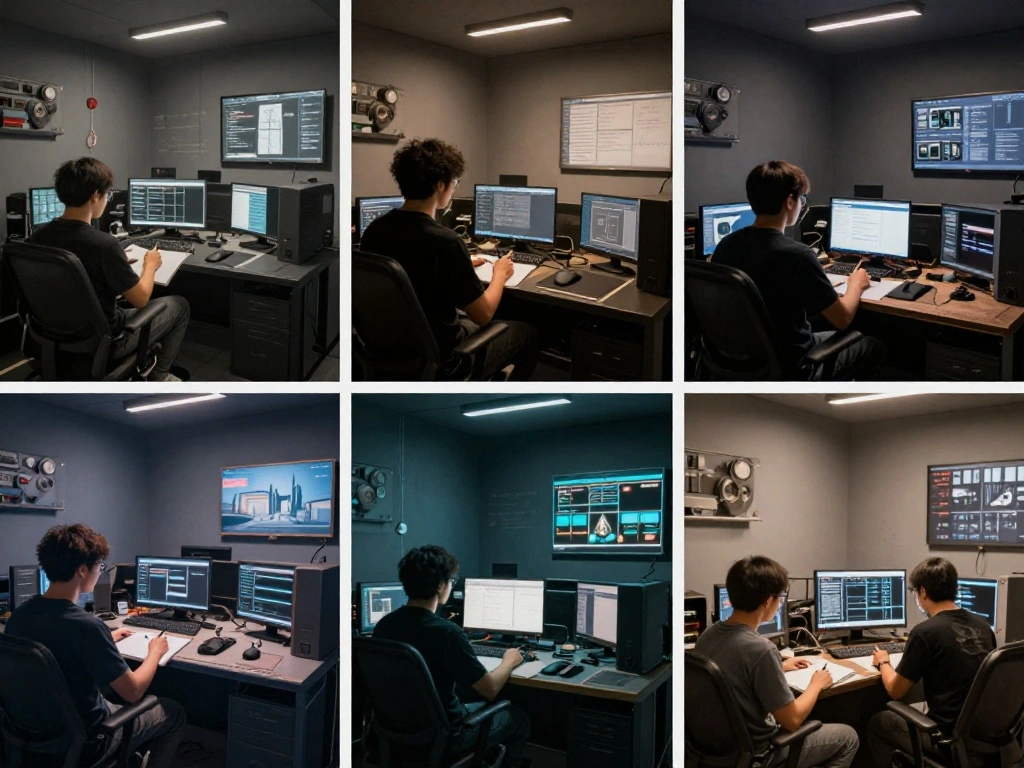
Start by selecting a suitable location for your battlestation. Consider factors such as natural light, proximity to power outlets, and space availability. Follow these sub-steps:
- Evaluate different rooms in your home or office.
- Identify a spot with good lighting and minimal distractions.
- Ensure there are enough power outlets for your setup.
Pro Tip: Use a corner space to maximize your area. This setup can help reduce clutter and provide an immersive experience.
Why this matters: Choosing the right location sets the foundation for a productive and comfortable workspace.
Time estimate for this step: 30 minutes.
Step 1: Choose Your Location
Editor’s Choice

LED Desk Lamp Clip on Light with 3 Color Modes 10 Brightness Ring/Clamp …

WALI Desk File Organizer, 4 Tier Desktop Paper Letter Tray Organizer wit…
ErGear Height Adjustable Electric Standing Desk, 48 x 24 Inches Sit Stan…
Step 2: Select Your Desk and Chair
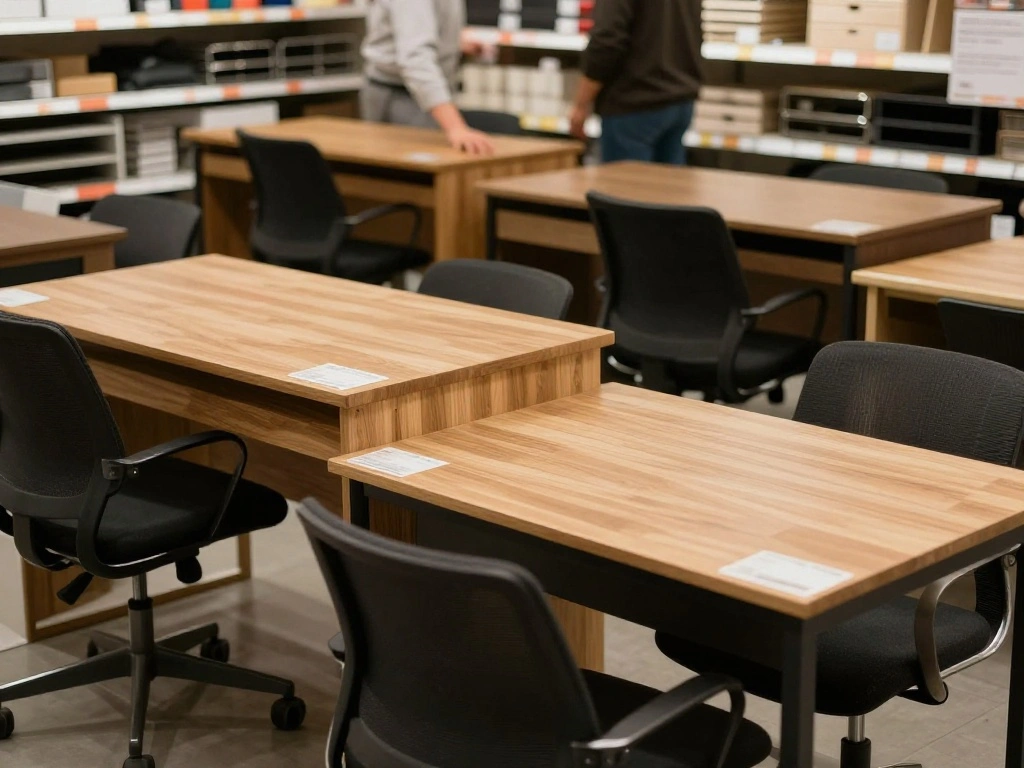
Your desk and chair are essential for comfort and productivity. Choose a desk that fits your space and a chair that supports your posture. Follow these sub-steps:
- Measure the space where the desk will go.
- Choose a desk with enough surface area for your monitor and other equipment.
- Select an ergonomic chair that adjusts for height and lumbar support.
Warning: Avoid desks that are too low or too high, which can lead to discomfort and poor posture over time.
Why this matters: A good desk and chair combination enhances your comfort, allowing you to work or game for longer periods without strain.
Time estimate for this step: 30 minutes.
Step 2: Select Your Desk and Chair
Editor’s Choice

Lumbar Support Pillow for Office Chair, Office Home Essentials,Gifts for…

DUMOS 47” Gaming Desk with USB Charging Ports & LED Lights, Reversible…
Step 3: Set Up Your Monitor and Computer
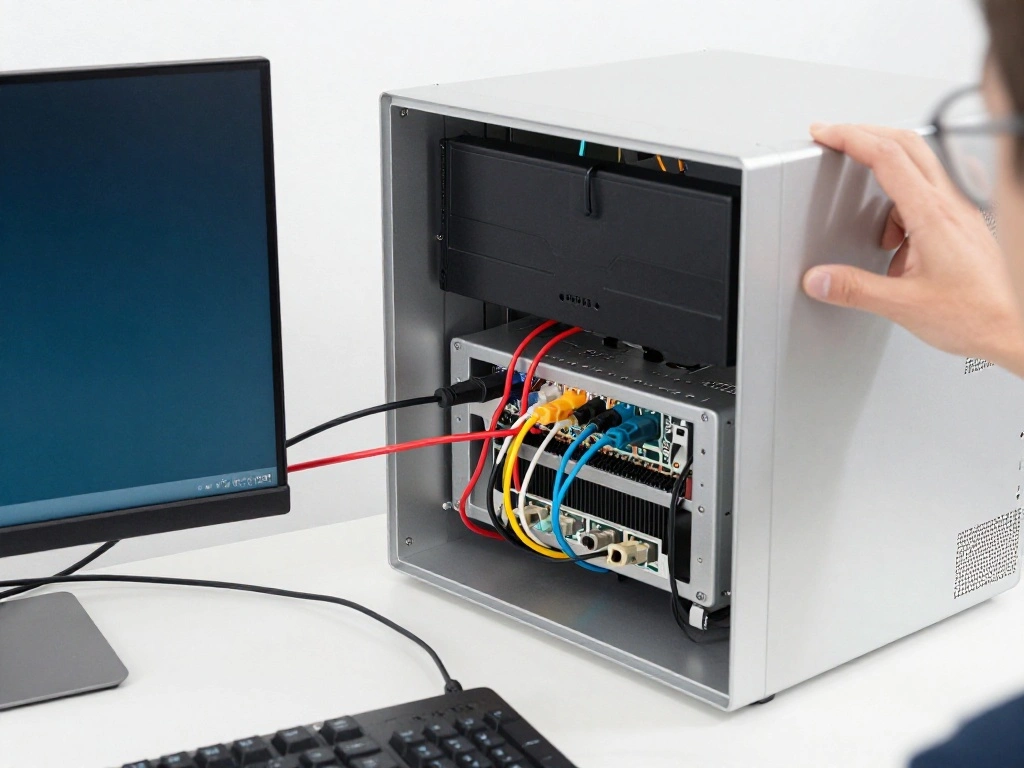
Now it’s time to set up your monitor and computer. A well-positioned monitor reduces eye strain and enhances your experience. Follow these sub-steps:
- Place your monitor at eye level, about 20-30 inches from your eyes.
- Connect your monitor to the computer using the appropriate cable (HDMI, DisplayPort, etc.).
- Adjust the monitor’s brightness and contrast settings.
Warning: Make sure your computer is turned off while connecting cables to avoid short circuits.
Why this matters: Proper positioning of your monitor helps you maintain good posture and reduces fatigue during long sessions.
Time estimate for this step: 30 minutes.
Step 3: Set Up Your Monitor and Computer
Editor’s Choice

Calibrite Display Pro HL Monitor Calibration Colorimeter for LCD Mini LE…

Single LCD Computer Monitor Free-Standing Desk Stand Mount Riser for 13 …

Highwings 8K 10K 4K HDMI Cable 48Gbps 6.6FT/2M, Certified Ultra High Spe…
Step 4: Organize Your Cables
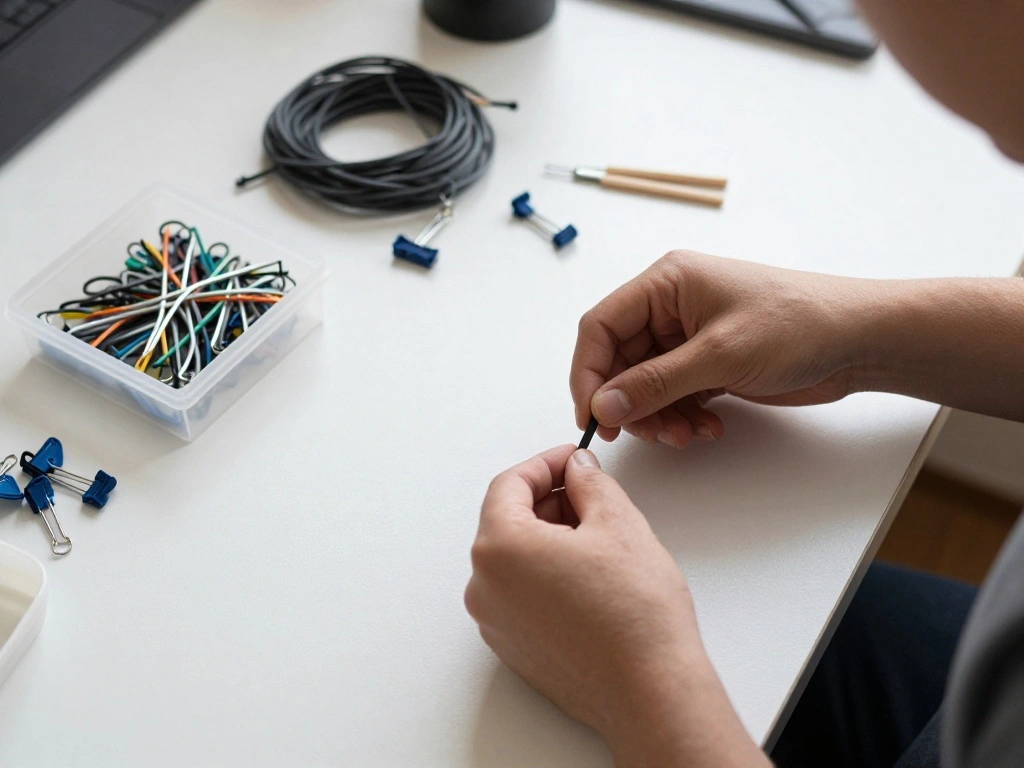
Cable management is essential for a clean and efficient battlestation. Follow these sub-steps to organize your cables:
- Group cables by type (power, USB, etc.) and length.
- Use cable ties or clips to bundle cables together.
- Route cables behind the desk or along the edges to keep them out of sight.
Pro Tip: Label your cables if you have multiple devices. This will make it easier to identify connections in the future.
Why this matters: A tidy workspace not only looks better but also improves airflow and reduces the risk of tangling or damage.
Time estimate for this step: 30 minutes.
Step 4: Organize Your Cables
Editor’s Choice

60 PCS XHF 5/8” Adhesive Cable Wire Clips Clear, Outdoor Christmas Lig…

Alex Tech 10ft – 1/2 inch Cord Protector Wire Loom Tubing Cable Sleeve S…
Step 5: Add Personal Touches and Accessories

Personalizing your battlestation can enhance your enjoyment and make it feel like your own. Follow these sub-steps:
- Choose accessories that reflect your style (posters, figurines, etc.).
- Add a mousepad that complements your setup.
- Consider adding LED lights for ambiance.
Pro Tip: Choose a color scheme for your accessories and lighting that promotes focus and creativity.
Why this matters: Personal touches create an inspiring environment that can boost motivation and creativity.
Time estimate for this step: 30 minutes.
Step 6: Test Your Setup
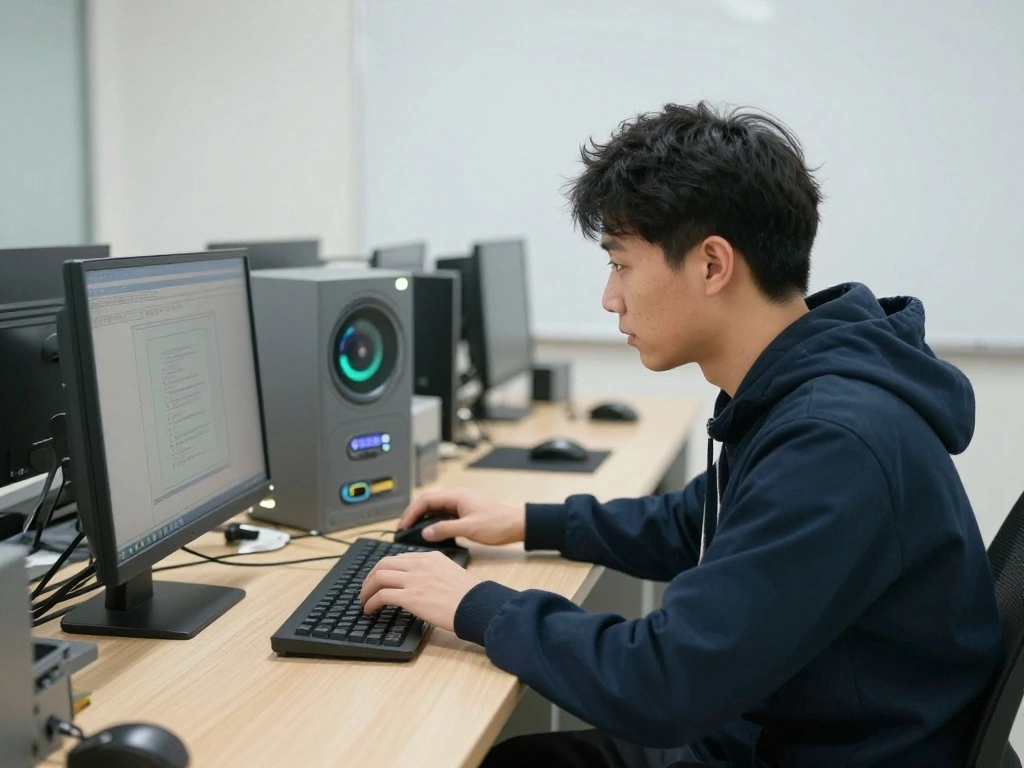
Before you dive into work or gaming, it’s crucial to test your setup to ensure everything is functioning correctly. Follow these sub-steps:
- Turn on your computer and monitor.
- Check all peripherals (keyboard, mouse, headset) for responsiveness.
- Run any software updates and install necessary drivers.
Warning: If something isn’t working, don’t panic! Check connections and settings before troubleshooting further.
Why this matters: Testing ensures that your battlestation is ready for action, preventing frustrations during important moments.
Time estimate for this step: 30 minutes.
Step 6: Test Your Setup
Editor’s Choice
Alex Tech 10ft – 1/2 inch Cord Protector Wire Loom Tubing Cable Sleeve S…

Acer USB Hub 4 Ports, Multiple USB 3.0 Hub, USBA Splitter for Laptop wit…
WALI Computer Monitor Stand for Desk, Adjustable Laptop Riser, Desk Moni…
Step 7: Final Adjustments and Comfort Checks
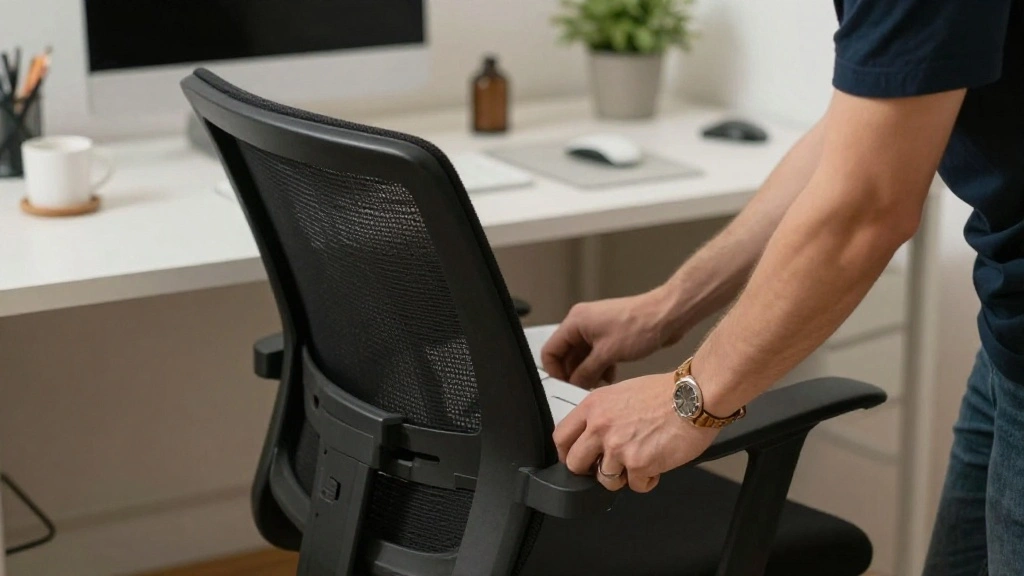
Once everything is up and running, take a moment to make final adjustments. Follow these sub-steps:
- Adjust your chair height for optimal posture.
- Rearrange any items that feel out of place.
- Test your workspace for comfort by spending a few minutes using it.
Pro Tip: Keep a notepad nearby for any adjustments you want to remember for later.
Why this matters: Ensuring comfort and functionality will make your battlestation a space you can enjoy for hours.
Time estimate for this step: 30 minutes.
Pro Tips
- Lighting Matters: Use adjustable lighting to reduce eye strain during long sessions.
- Ergonomic Setup: Invest in an adjustable desk or chair to find what works best for you.
- Declutter Regularly: Keep your workspace tidy to maintain focus and efficiency.
- Use Quality Gear: Prioritize quality over quantity with your peripherals for better performance.
- Take Breaks: Schedule regular breaks to avoid fatigue and maintain productivity.
Pro Tips
Editor’s Choice

Adjustable LED Desk Lamp with Clamp, 4-Head Eye-Caring CRI95+ Desk Light…
TRALT Office Chair Ergonomic Desk Chair, 330 LBS Home Mesh Office Desk C…

SteelSeries Apex 3 RGB Gaming Keyboard – 10-Zone RGB Illumination – …
Common Mistakes to Avoid
Warning: Choosing the Wrong Desk Height: This can lead to discomfort and strain. Measure your ideal desk height based on your chair and monitor setup to avoid this mistake.
Warning: Ignoring Cable Management: A tangled mess can cause frustration and potential damage. Use ties and clips to keep cables organized from the start.
Warning: Overloading Power Outlets: This can pose a fire hazard. Make sure your power strips are rated for the devices you are using and avoid daisy-chaining them.
Common Mistakes to Avoid
Editor’s Choice

VIVO Under Desk 17 inch Cable Management Tray, Power Strip Holder, Cord …
Troubleshooting Section
Problem: Monitor not turning on.
Solution: 1. Check the power cable connections. 2. Ensure the monitor is plugged into a working outlet. 3. Verify that the correct input source is selected.
Problem: Keyboard or mouse not responding.
Solution: 1. Check USB connections. 2. Restart your computer. 3. Try different USB ports if necessary.
Problem: Poor audio quality from speakers or headset.
Solution: 1. Check volume levels. 2. Ensure drivers are up-to-date. 3. Test with another device to isolate the issue.
Troubleshooting Section
Editor’s Choice

SABRENT 4 Port USB 3.0 Hub with Individual LED Lit Power Switches, Inclu…
Highwings 8K 10K 4K HDMI Cable 48Gbps 6.6FT/2M, Certified Ultra High Spe…

Amazon Basics 2 RCA Stereo Audio Cable for Hi-Fi System, Amplifier, Acti…
Variations/Alternative Methods
1. Standing Desk Variations: Consider a standing desk if you prefer to alternate between sitting and standing. This can improve posture and energy levels.
2. Minimalist Setup: Focus on essential equipment only, which can promote a clutter-free environment and enhance focus.
3. Wall-Mounted Monitors: If space is tight, consider wall-mounting your monitor to free up desk space while maintaining comfort.
Variations/Alternative Methods
Editor’s Choice
ErGear Height Adjustable Electric Standing Desk, 48 x 24 Inches Sit Stan…
FAQs
What if I don’t have a big budget? Look for second-hand furniture or budget-friendly options that offer good quality. You can also start small and upgrade over time.
How long should I spend setting up my battlestation? Aiming for 2-3 hours is ideal, but take your time to ensure everything is comfortable and functional.
Is it safe to use multiple monitors? Yes, as long as your computer supports it and you have enough desk space and power outlets.
FAQs
Editor’s Choice

HUANUO FlowLift™ Dual Monitor Stand, Fully Adjustable Gaming Monitor D…

OLIXIS 47 Inch Computer Office Desk for Small Spaces, Writing Gaming Wor…

N-GEN GAMING Video Gaming Chair with Footrest Lumbar Support for Home Of…
Conclusion
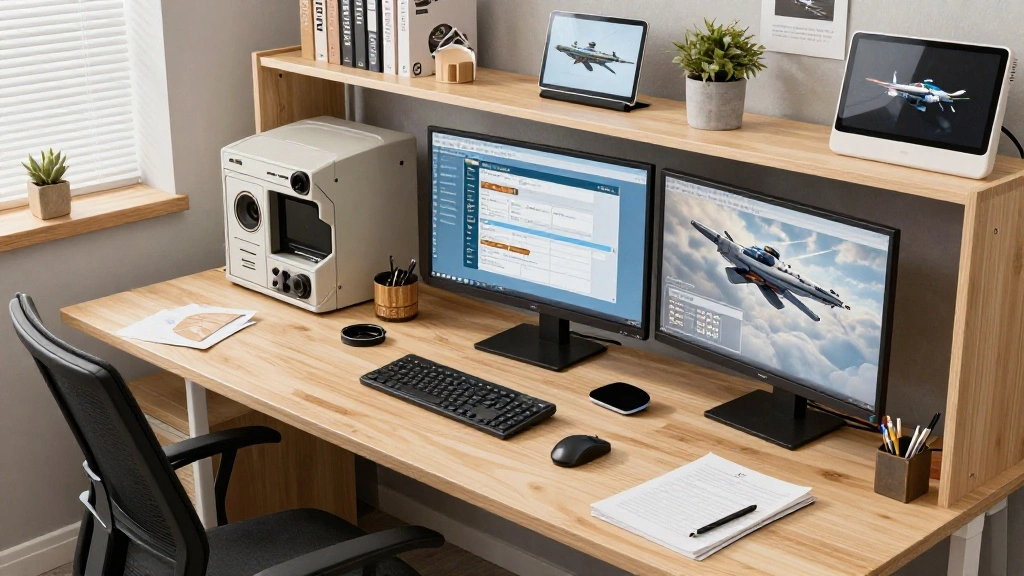
Congratulations! You’ve successfully built your first battlestation. Take a moment to admire your work and enjoy your new setup. Now that you have everything in place, consider exploring software to enhance your workflow or gaming experience.
Remember, a battlestation is a personal space. Feel free to continue adding elements that inspire you. Whether it’s new gear, decor, or technology, your battlestation can always evolve. Enjoy the journey ahead!