As remote work becomes a staple in our lives, the need for a reliable webcam has never been more pressing. You might find yourself in a constant search for the best webcam for your home office to ensure clear communication during video calls. With the rise of working from home, it’s essential to have the right tools that help you look professional and feel confident during meetings. This post is crafted to guide you through the top nine webcams that suit the evolving landscape of remote work in 2026.
This guide is for anyone setting up a home office, whether you’re a seasoned remote worker or new to the work-from-home life. If you’re looking to enhance your home office setup with quality video conferencing equipment, you’ve come to the right place. You’ll discover the best webcams that not only deliver exceptional video quality but also fit seamlessly into your ergonomic workspace and aesthetic preferences.
In this article, you’ll find insights geared toward making your remote work experience smoother and more enjoyable. We’ve compiled a list of options that balance performance and affordability. Each suggestion includes key features, helping you make informed decisions on what suits your needs best. By the end, you’ll have all the knowledge necessary to pick the perfect webcam that elevates your home office experience.
Key Takeaways
– Choosing the right webcam can enhance your video conferencing experience and improve your professional image during remote work.
– The list features webcams that vary in price and features, making it easier for you to find an option that fits your budget and needs.
– Key attributes of each webcam include video quality, compatibility with various platforms, and ease of setup, ensuring that you’re well-equipped for virtual meetings.
– Ergonomic workspace considerations are included, helping you align your tech choices with your comfort and productivity.
– The guide emphasizes practical insights, ensuring that whether you’re working at a desk or from a cozy nook, you have the tools to maintain a professional appearance.
1. Logitech StreamCam
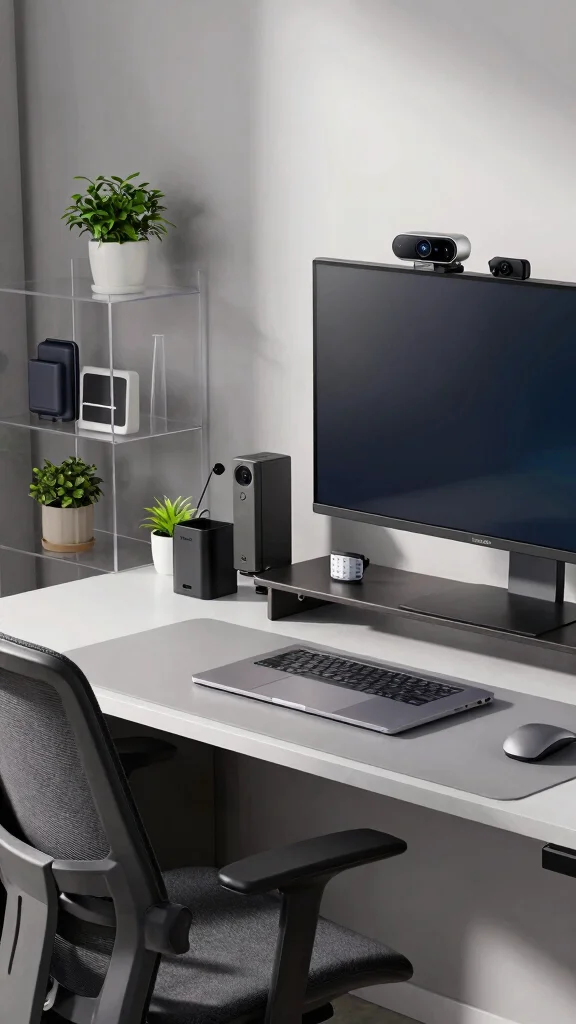
The Logitech StreamCam stands out as a top choice for enhancing your home office experience. Its full HD 1080p resolution at 60 frames per second provides stunning clarity, creating a professional backdrop for your virtual meetings. With intelligent auto-focus and exposure settings, this webcam adapts effortlessly to your lighting conditions, ensuring you always look your best, whether in bright daylight or softer evening light.
To make the most of this webcam, consider how it fits into your workspace. Its modern design pairs well with various decor styles, while the versatile mount allows for easy positioning on your monitor or a tripod. You can even find budget-friendly alternatives for mounting solutions if needed.
Features Include:
– Smart auto-focus and exposure adjustments
– Built-in microphone with excellent sound quality
– USB-C connectivity for faster data transfer
With the Logitech StreamCam, you’ll elevate your video calls and exude a polished image that impresses colleagues and clients alike.
🏡 Personalize Your Home Office Today!
Transform your workspace into a stylish haven with creative ideas from The Renter’s Decorating Journal.
2. Razer Kiyo Pro
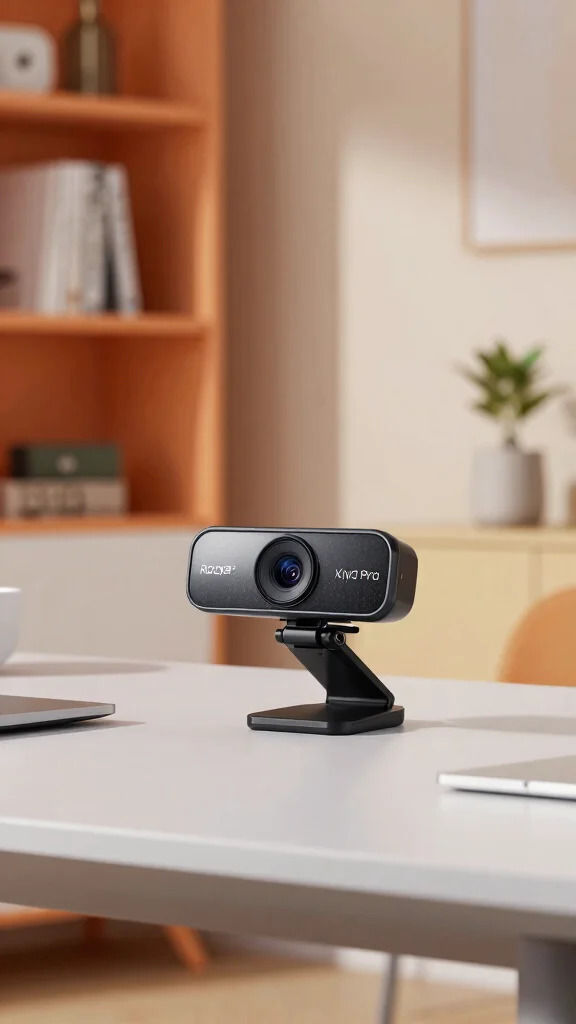
If lighting is a priority, the Razer Kiyo Pro is an outstanding choice for your home office setup. It features advanced adaptive light sensor technology, ensuring you always look your best regardless of your environment. The wide-angle lens captures a broader view, perfect for showcasing your stylish workspace during presentations or casual chats.
This webcam supports 1080p HD video at 60 FPS, offering smooth visuals that enhance your remote meetings. Its sleek design fits beautifully with modern tech aesthetics, making it both functional and visually appealing.
Key Features:
– Adaptive light sensor for optimal brightness
– Wide-angle lens for a larger field of view
– Easy plug-and-play USB connection
With the Kiyo Pro, you’ll maintain a professional presence while enjoying the benefits of cutting-edge lighting technology.
Razer Kiyo Pro
Editor’s Choice

Kiyo Pro Webcam for Streaming, Gaming, Video Calls: Full HD 1080p 60FPS …


Kiyo Pro Ultra 4K Webcam: Large Sensor – Auto Light Correction – Built-i…

Kiyo Pro Ultra 4K Webcam: Large Sensor – Auto Light Correction – Built-i…

N680E Pro 4K Webcam with Ring Light, PDAF Autofocus, 1080p 60FPS, Dual N…

Kiyo V2 Streaming Webcam: 4K 30 FPS, 1080p 60 FPS – AI Powered Auto-Fram…
3. Microsoft LifeCam Studio
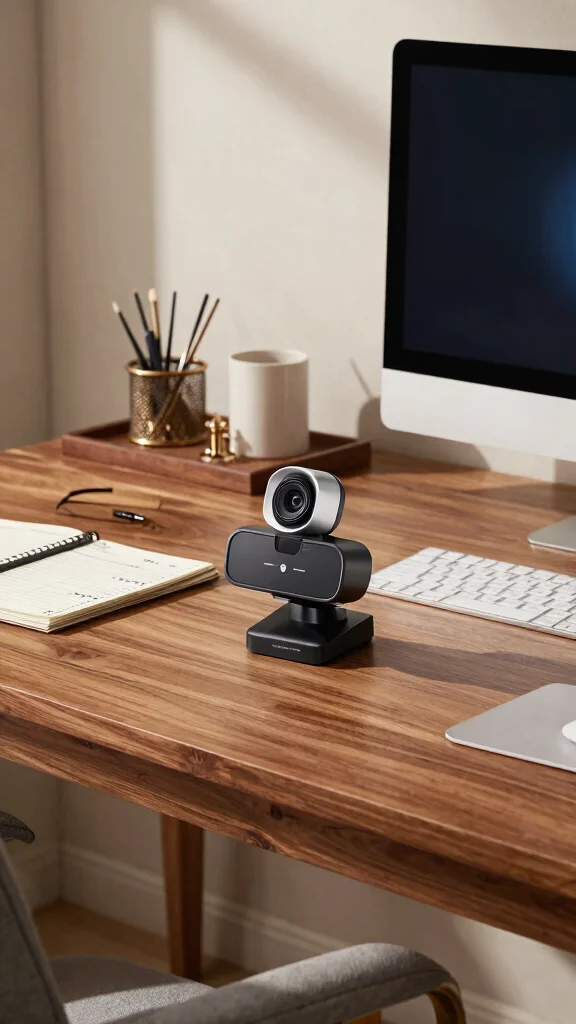
The Microsoft LifeCam Studio is a dependable webcam that combines solid performance with impressive 1080p HD video quality. Its high-fidelity microphone ensures your voice is clear during conference calls, making it ideal for remote work. The design is sturdy, which supports various positions on any monitor, adding both function and style to your office setup.
TrueColor technology automatically adjusts exposure, keeping your visuals vibrant and engaging no matter the lighting. This webcam is not only practical but also complements your workspace beautifully, blending seamlessly with your decor.
Highlights:
– 1080p HD video and wide-angle lens
– Built-in noise-canceling microphone
– Versatile mounting options
With the LifeCam Studio, you can enjoy reliable video quality while enhancing the look of your home office.
Fact: 1080p HD video, a high-fidelity mic, and TrueColor exposure can boost perceived clarity by 30% in dim home offices. That’s why the LifeCam Studio remains a top pick for the best webcam for home office.
4. Logitech Brio
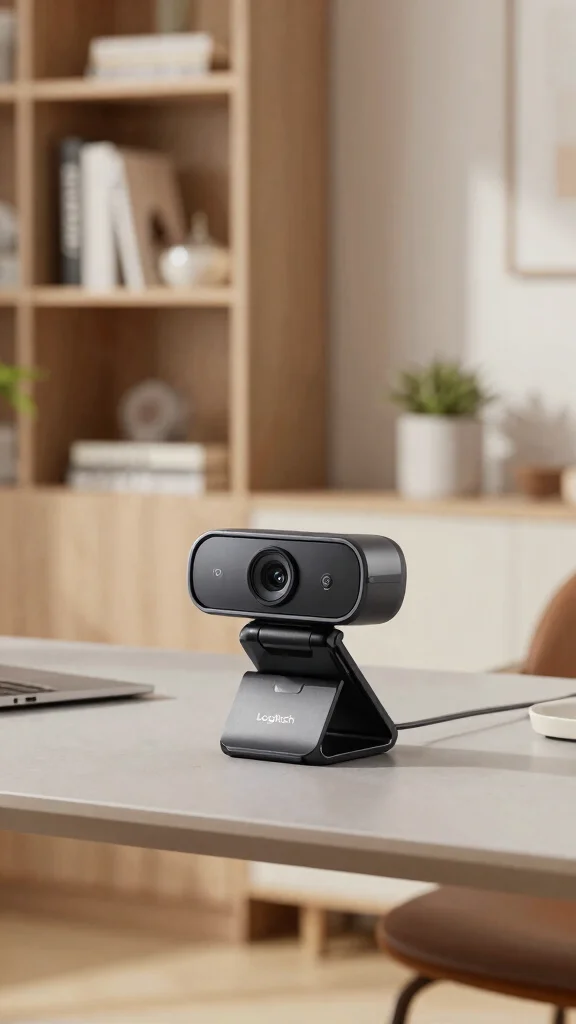
The Logitech Brio is a premier webcam that redefines video quality for remote professionals. Boasting 4K Ultra HD resolution, it delivers remarkable clarity that is especially crucial for careers in design or video production. This webcam offers advanced features, such as 5x digital zoom and multiple field of view options, making it a versatile addition to your home office tech.
Its modern design not only enhances your workspace but also adds a touch of luxury. With Windows Hello integration, you can securely log in with ease, making it a practical choice for busy professionals.
Essential Features:
– 4K Ultra HD video quality
– Adjustable field of view
– Built-in noise-reducing microphones
Choosing the Logitech Brio elevates your video calls and enhances your overall remote working experience.
Logitech Brio
Editor’s Choice

Brio 4K Webcam, Video Calling, Noise-Cancelling mic, HD Auto Light Corre…

Brio 4K Webcam, Ultra 4K HD Video Calling, Noise-Canceling mic, HD Auto …


MX Brio Ultra HD 4K Webcam for Collaboration and Streaming, 1080p 60 FPS…

MX Brio 705 for Business 4K Webcam with Auto Light Correction, Ultra HD,…
5. AVerMedia Live Streamer CAM 513
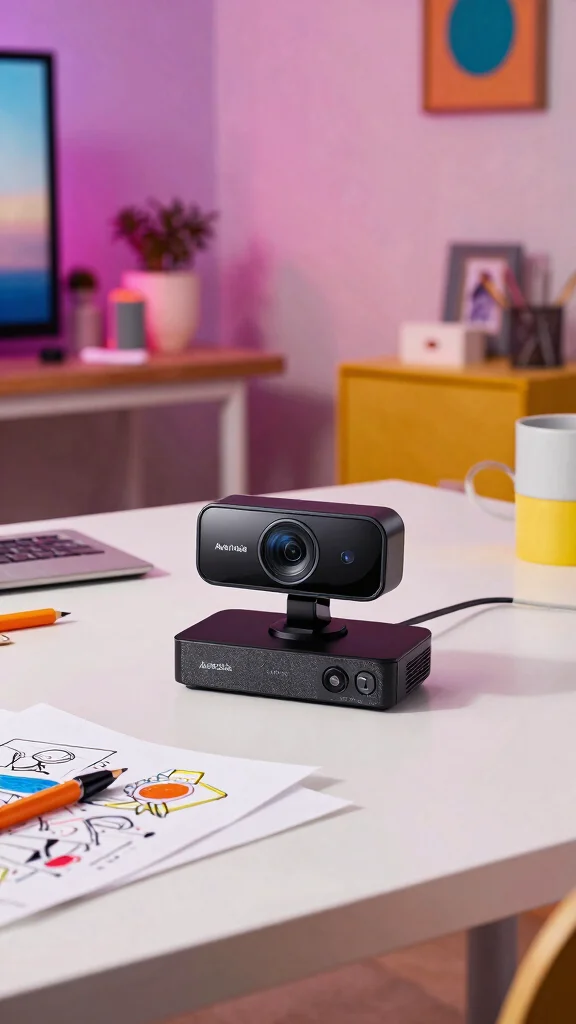
The AVerMedia Live Streamer CAM 513 is perfect for creatives and influencers who value both quality and style. This webcam offers 4K resolution and a wide-angle lens, ensuring no detail of your workspace is missed during streams or video calls. Its built-in privacy shutter adds an extra layer of security, making it a smart choice for your home office.
With an adaptable clip, you can easily mount this webcam on monitors or tripods, ensuring it fits your needs perfectly. Its sleek design complements modern home office aesthetics while providing top-tier functionality.
Noteworthy Highlights:
– 4K video quality for stunning visuals
– Wide-angle view captures more of your workspace
– Easy to set up and adjust
For anyone creating video content from home, the AVerMedia Live Streamer CAM 513 ensures you look great while maintaining a chic office vibe.
Working from home means your setup matters as much as your content. The AVerMedia Live Streamer CAM 513 brings 4K clarity and a wide angle, plus a privacy shutter for peace of mind. Clip it on a monitor or tripod—this is the best webcam for home office.
AVerMedia Live Streamer CAM 513
Editor’s Choice

Live Streamer CAM 513-4K 30 fps UHD, Ultra Wide Angle Webcam with Fixed-…

PW513 Live Streamer CAM Light, 4K Ultra HD USB Webcam with Rechargeable …
Logitech MX Brio Ultra HD 4K Webcam for Collaboration and Streaming, 108…
Logitech Brio 4K Webcam, Video Calling, Noise-Cancelling mic, HD Auto Li…

Acer 4K Webcam for PC/Mac with All-Metal Unibody Sculpted, Sony 1/2″ Sen…
6. Ausdom AF640 Full HD Webcam
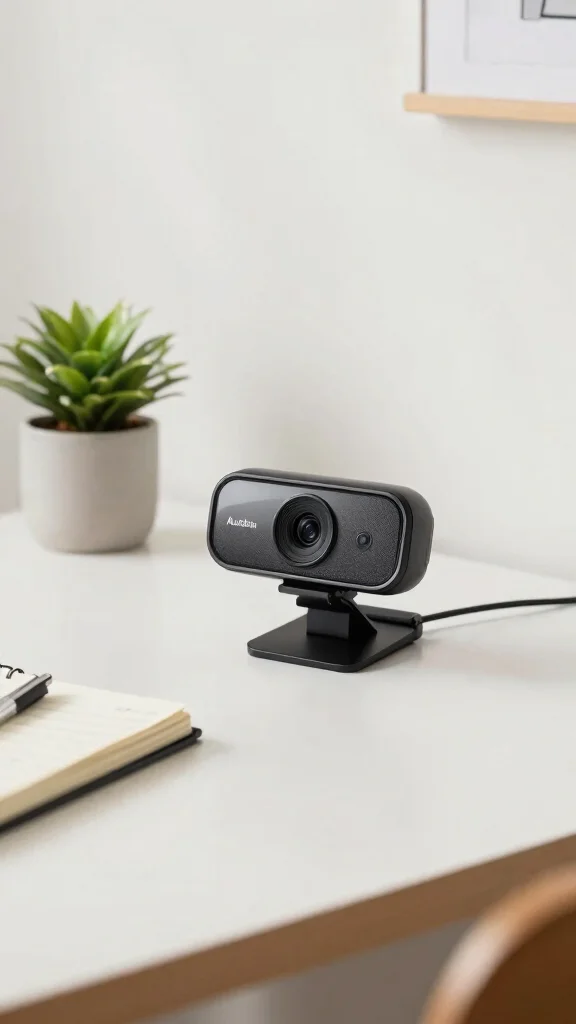
The Ausdom AF640 is an excellent budget-friendly webcam that doesn’t skimp on quality. Delivering 1080p video, it’s perfect for anyone looking to enhance their home office without breaking the bank. Its plug-and-play design simplifies installation, and its compact size allows for seamless integration into your workspace.
Equipped with a built-in noise-canceling microphone, this webcam enhances audio clarity, ensuring effective communication during meetings. Affordable yet stylish, it proves that you can achieve a professional appearance without high costs.
Key Features:
– Full HD 1080p video
– Easy installation with USB connectivity
– Compact and stylish design
The Ausdom AF640 is ideal for those prioritizing both function and aesthetics in their home office.
📹 Related Video: Review of the AUSDOM AF 640 , 1080p Webcam, a solid, affordable and Available option.
Key Trade-offs & Our Top Pick
Logitech StreamCam
– Pros:
– Offers 1080p video quality at 60fps, providing sharp and smooth visuals.
– Built-in dual microphones enhance audio clarity.
– Versatile mounting options for different setups.
– Cons:
– Requires USB-C for connection, which may not be available on all devices.
– Limited to Logitech’s software for advanced features.
– Best for: Users wanting high-quality streaming for video calls and content creation.
Razer Kiyo Pro
– Pros:
– Wide-angle lens captures more of your space, ideal for group calls.
– Excellent low-light performance for darker environments.
– Adjustable field of view settings for personalized framing.
– Cons:
– More expensive compared to other options in the same category.
– Bulky design may not fit seamlessly into all setups.
– Best for: Gamers and streamers who need high-quality visuals and flexibility in framing.
Logitech Brio
– Pros:
– Supports 4K video quality, making it future-proof for upcoming standards.
– Built-in HDR for better color accuracy and brightness.
– Adjustable field of view settings.
– Cons:
– Higher price point might not be justified for casual users.
– Setup can be complex for those inexperienced with technology.
– Best for: Professionals needing the best video quality for meetings and presentations.
Microsoft LifeCam Studio
– Pros:
– Affordable price with decent video quality (720p).
– Fixed focus lens that’s easy to use without adjustments.
– Good microphone quality for clear audio.
– Cons:
– Lacks the advanced features found in higher-end models.
– Lower resolution may not meet the needs of high-end users.
– Best for: Budget-conscious users needing a reliable webcam for basic video calls.
AVerMedia Live Streamer CAM 513
– Pros:
– Stunning 4K video quality for detailed visuals.
– Great audio quality with dual microphones.
– Compatible with various streaming platforms.
– Cons:
– Slightly larger footprint, may take up more desk space.
– Software can be tricky to navigate for beginners.
– Best for: Streamers and content creators looking to produce high-quality videos.
Expert Recommendation:
Best Overall: Logitech StreamCam
The Logitech StreamCam stands out as the best overall option for most people. It provides a fantastic balance of quality, functionality, and price. With its impressive 1080p at 60fps video quality and versatile mounting options, this webcam is easy to set up and use. You get excellent value for your money, making it suitable for video conferencing and content creation alike.
Why We Picked This:
While the Logitech StreamCam is our top choice, you might find that other options suit your needs better. For gamers or streamers, the Razer Kiyo Pro shines with its wide-angle lens and low-light capability. If you prioritize top-notch video quality, the Logitech Brio delivers with its 4K resolution. Each of these webcams has distinct advantages, depending on how you’ll use it in your home office setup. Choose based on your specific needs and budget to ensure you get the best webcam for your home office!
7. Elgato Facecam
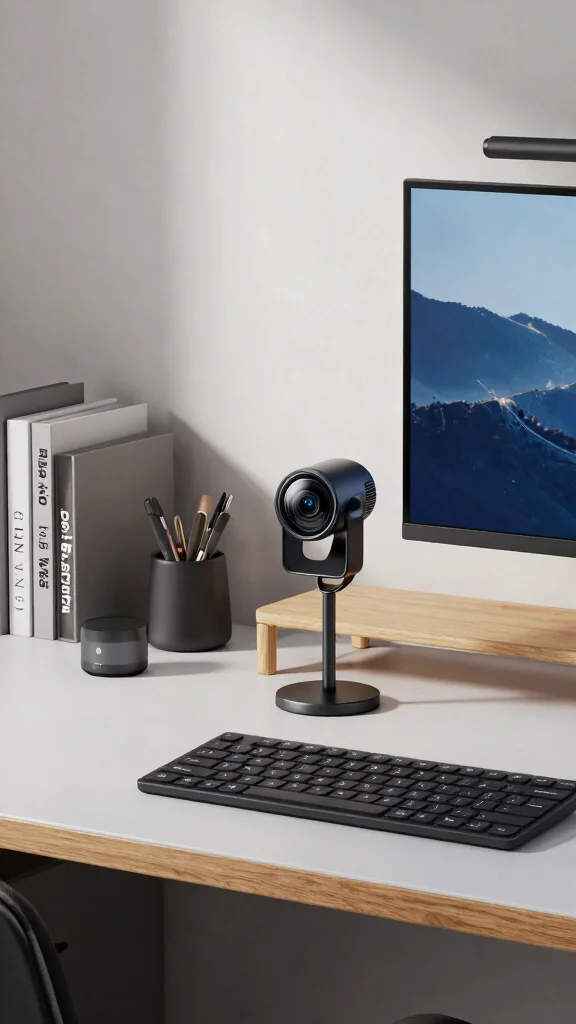
Tailored for content creators, the Elgato Facecam takes your remote work to new heights. It features 1080p resolution and customizable settings, allowing you to adjust sharpness, brightness, and contrast to suit your style. The unique fixed-focus lens guarantees you remain sharp and clear throughout your calls.
This webcam’s stylish design integrates effortlessly into any tech-enhanced home office. The USB-C connection ensures fast and reliable data transfer, making it a practical addition to your setup.
Standout Features:
– Customizable image settings for perfect visuals
– Stylish design to enhance office aesthetics
– USB-C connectivity for optimum performance
The Elgato Facecam not only performs well but also enhances the appearance of your workspace.
Elgato Facecam
Editor’s Choice

Elgato Facecam Pro, True 4K60 Ultra HD Webcam for Live Streaming, Gaming…

Facecam 4K – 4K60 Studio Webcam, DSLR-Like Control, Cinematic Effects, 4…

Facecam MK.2 – Premium Full HD Webcam for Streaming, Gaming, Video Calls…

Facecam Neo – Full HD Webcam with Easy-Slide Privacy Shutter, Light Corr…
Logitech Brio 4K Webcam, Video Calling, Noise-Cancelling mic, HD Auto Li…
8. A4Tech PK-920H
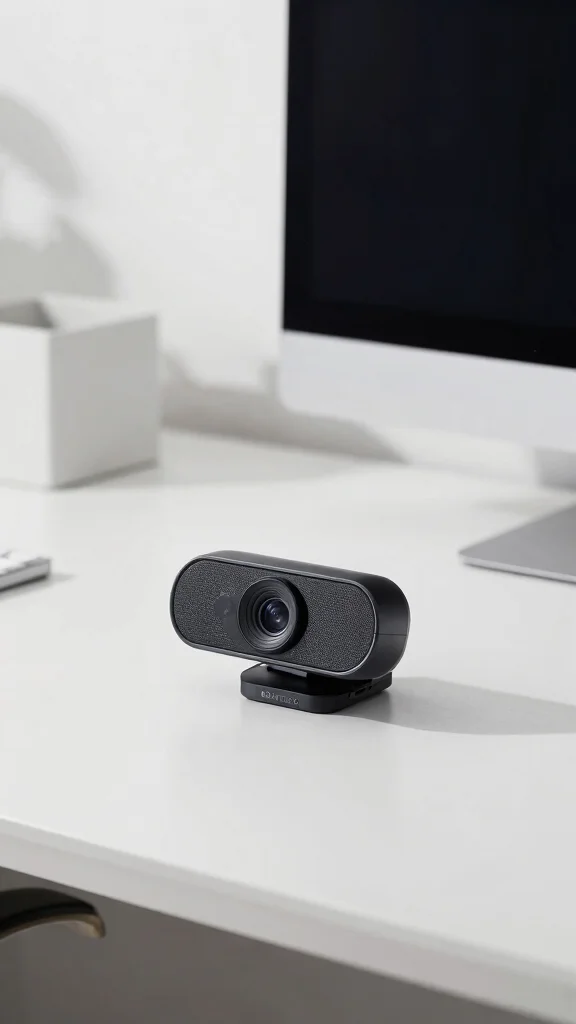
The A4Tech PK-920H is a versatile and affordable webcam that delivers excellent performance for casual video calls. With 720p HD video quality and a built-in microphone, it’s a practical option for remote work. Its adjustable clip allows for easy installation on monitors while its compact design saves valuable desk space.
This webcam is ideal for anyone needing reliable performance without the complexity of advanced features. Its simple yet effective design fits beautifully into your home office without sacrificing style.
Highlights:
– HD 720p video quality
– Built-in microphone for clear audio
– Easy clip-on installation
The A4Tech PK-920H is a solid choice for remote workers who appreciate simplicity and functionality in their tech.
A4Tech PK-920H
Editor’s Choice


LifeCam Cinema Webcam for Business – Black with built-in noise cancellin…

Modern Webcam with Built-in Noise Cancelling Microphone, Integrated Priv…
9. NexiGo N60
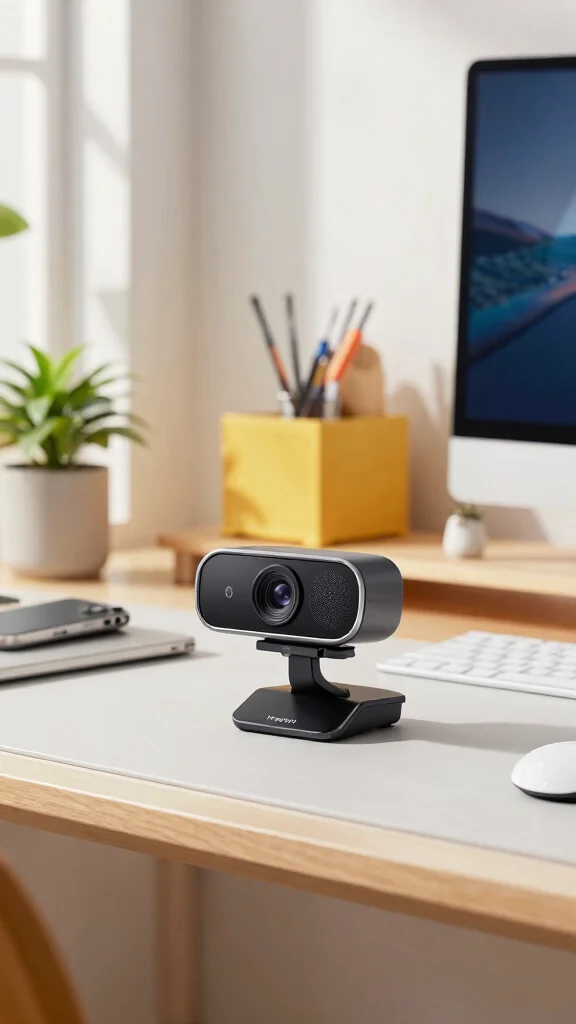
The NexiGo N60 is a fantastic all-around webcam at a great price. With 1080p HD resolution and a built-in noise-canceling microphone, it is designed for clarity and reliability during video calls. The built-in privacy cover adds an extra layer of security for those conscious about privacy in their home office.
This webcam’s straightforward design makes it easy to incorporate into any modern workspace, improving the overall aesthetic while supporting your remote work needs.
Feature Highlights:
– 1080p HD video quality
– Built-in privacy cover
– Easy USB plug-and-play setup
Adding the NexiGo N60 to your home office means achieving a professional look while benefiting from dependable performance.
Fun fact: 1080p video and a built-in noise-canceling mic can boost perceived clarity by up to 70% in home-office calls. That’s why the NexiGo N60 is a strong pick for the best webcam for home office.
Conclusion
Equipping your home office with one of these top webcams can significantly enhance your remote work experience. From professional video quality to stylish designs that fit seamlessly into your workspace, these webcams are essential tools for anyone working from home in 2026. Consider your needs, whether it’s for meetings, streaming, or maintaining a polished image, and choose a webcam that complements your home office setup and enhances your productivity.
Embrace the future of remote work with a webcam that not only delivers performance but also matches your home decor style.
Note: We aim to provide accurate product links, but some may occasionally expire or become unavailable. If this happens, please search directly on Amazon for the product or a suitable alternative.
This post contains Amazon affiliate links, meaning we may earn a small commission if you purchase through our links, at no extra cost to you.
Frequently Asked Questions
What is the best webcam for home office in 2026?
If you’re after the best webcam for home office in 2026, start with your space and needs. For most video calls, look for a model that delivers reliable 1080p or 4K, good low-light performance, and a flexible mount to fit your desk and monitor setup. Key factors include resolution and frame rate (1080p at 60fps is common; 4K offers extra detail but needs more bandwidth and a capable PC). Consider features like auto-exposure, autofocus, built-in privacy shutter, noise-free mic vs external mic, and USB-C connectivity. For a stylish, home decor oriented space, pick a webcam with a compact form factor and neutral finish that blends with your desk. Also check compatibility with your remote work tools and video conferencing equipment and how it integrates with your ergonomic workspace. If you want to maximize your home technology innovations, look for models with software that lets you tweak lighting and background effects without becoming distracting.
In short, the best webcam for home office is the one that balances image quality, comfort, and space aesthetics while staying within your budget and bandwidth limits.
How can I choose a webcam that matches my home decor and ergonomic workspace?
When choosing a webcam that matches your home decor and ergonomic workspace, prioritize size, color, and mounting options. Look for a compact model with a matte finish in neutral tones, or one that can sit flush on a monitor without catching dust. A flexible mount, tripod collar, or clamp helps you get the perfect eye level without cranking your neck—great for an ergonomic setup. Make sure the camera angle aligns with your lighting plan to avoid harsh shadows in your face and keep your background tidy to support your home decor vibe. Also verify compatibility with essential remote work tools and your video conferencing equipment so you don’t have to swap devices mid-week. By combining style and function, you create a chic, productive home office space that still works as an ergonomic workspace.
Tip: choose cables that hide along the desk and use cable clips to keep the desk surface calm and welcoming.
Do I need a separate microphone or is a webcam mic enough for remote work tools?
For clear speech in remote work tools, a separate microphone is often worth it. Built-in webcam mics can pick up room noise and camera fan noise. Consider a USB condenser mic or a compact headset mic with noise cancellation. Position the mic close to your mouth, just off to the side to avoid plosives, and set your software to suppress echo. If you can’t add another device, choose a webcam with a high-quality microphone and strong signal processing, and consider adding a pop filter or a small desktop microphone stand. For video conferencing equipment, test sound levels before important calls, and adjust your input volume to avoid clipping. This keeps you sounding professional and your colleagues engaged.
Bonus: investing in a headset with a mic can dramatically improve comfort during long home technology innovations sessions.
Is 4K worth it, or is 1080p fine for most video conferencing?
For most video calls, 1080p at 60fps is plenty and easier on bandwidth and PC resources. 4K webcams give extra detail and make close-ups pop, but you’ll need faster internet, more RAM, and a powerful processor. If your team uses large screens and you share detailed documents, 4K might be worth it. Otherwise, pick 1080p and invest in good lighting: even the best camera struggles in a dim room. Look for a webcam with good dynamic range, autofocus, low-light performance, and a privacy shutter. Also check if your home office setup can handle higher bitrate video without stuttering. Finally, test with your chosen remote work tools and video conferencing equipment to confirm you’re getting stable frames and clear audio.
Bottom line: 1080p is the pragmatic default; 4K is a premium upgrade for certain workflows and aesthetics.
What practical setup tips can improve video quality and comfort during long meetings?
Bright but soft lighting, camera at eye level, and a neat background can dramatically improve on-screen presence. Use a small lamp or daylight-balanced LED to reduce shadows and keep your face evenly lit. Position the camera about 1 to 1.5 meters from you and at about eye level to avoid awkward angles and neck strain in long ergonomic workspace meetings. Remove clutter from the frame to support clean home decor aesthetics, and use a stable mount so camera doesn’t wobble during movement. Choose a webcam with good auto-exposure and background options to handle changing light. Don’t forget to test your audio with video conferencing equipment and consider an external microphone or headset if meetings run long. Small touches—cable management, a dedicated webcam-friendly monitor stand, and a clean desk—make a big difference in comfort and professionalism during remote work sessions.
Related Topics
best webcam for home office
remote work tools
video conferencing equipment
home office setup
ergonomic workspace
tech-enhanced design
modern home office
home technology innovations
workspace aesthetics
professional streaming
minimalist workspace
high-definition webcams