

Remote work has become a common reality for many of us, and it’s easy to feel overwhelmed in a home office setting. Whether you’re in a cozy nook or set up at the kitchen table, the right tools can make all the difference in boosting your productivity. This post was created to share my top picks for essential productivity tools that can help you navigate the unique challenges of remote work.
If you’re a remote worker striving to improve your workspace organization, enhance remote team collaboration, or simply find the best home office essentials, you’re in the right place. This guide is designed for anyone who wants to work smarter, not harder. You’ll discover eight productivity tools that are not only user-friendly but also effective in managing your tasks and time better.
By diving into this list, you’ll gain insights into tools like Trello for project management and Slack for team communication. These resources can help you streamline your workflow and make remote work feel less daunting. Say goodbye to distractions and hello to a more organized and productive home office!
Key Takeaways
– Boost Organization: Tools like Trello and Notion can help you manage projects visually, allowing you to see tasks and deadlines clearly.
– Enhance Focus: Music services like Focus@Will can create the perfect background sound for concentration, helping you stay in the zone.
– Streamlined Communication: Using platforms like Slack improves remote team collaboration, making it easier to share ideas and updates.
– Efficient Task Management: Todoist offers a simple way to keep track of your daily tasks, ensuring you never miss a deadline.
– Stay Connected: Video conferencing tools like Zoom allow you to maintain personal connections with colleagues, keeping team spirit alive even from afar.
Recommended Products

DRY ERASE PROJECT MANAGEMENT PLANNER: Be made of 250 gsm construction paper, laminated by special formula film that is erasable, make the surface resistant to ghosting or staining. We can erase easily even months later and use this work schedule board over and over again

PROJECTS VISUAL COMMUNICATION: Getting a glance of your multiple projects progress. Tracking the status, timeline and goals of each project, To make team watch and know the project's information

✔ Ultimate Gantt Chart Project Management Board Kit. Build project timelines, identify critical paths, and manage project risks effortlessly and everything visually. Simplify complex project activities and enhance project management with the power of visualization. Comprehensive project management set with 668 magnetic pieces, risk magnets, markers, cleaning tools, and an easel.
1. Trello: Your Visual Project Management Buddy
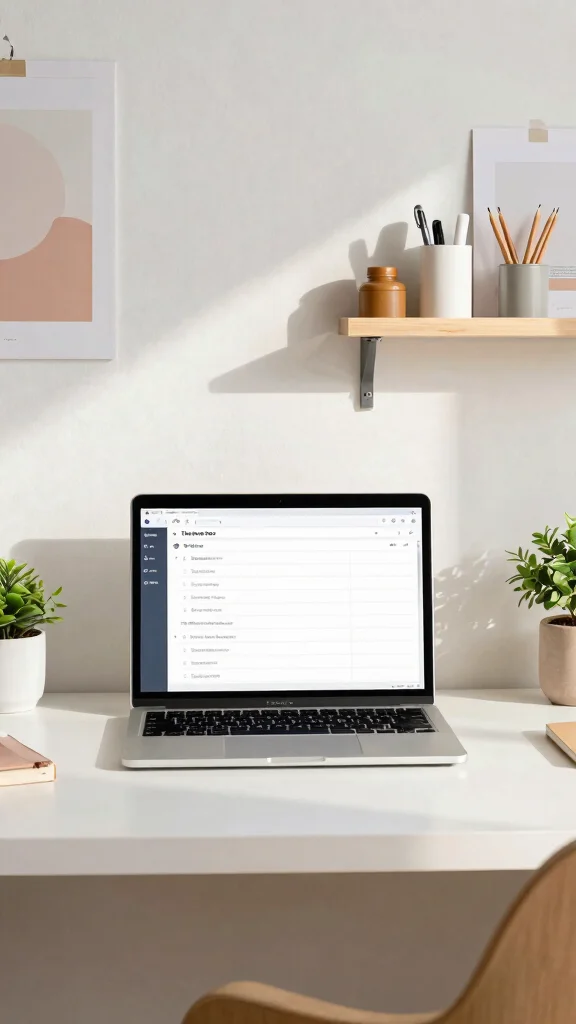
Trello stands out as a favorite among remote workers who appreciate visual organization. By utilizing boards, lists, and cards, you can effortlessly track your tasks and projects. This tool’s simple drag-and-drop feature allows you to adjust priorities seamlessly. For instance, adding due dates and checklists keeps your team aligned and focused on what matters most.
To make the most of Trello, consider breaking down larger projects into smaller, actionable steps. You can even explore free templates available online to kickstart your project management journey. This visual approach can alleviate the stress of overwhelming tasks and enhance your focus.
Consider these ways to maximize Trello’s features:
– Pair color-coded labels with project boards for quick identification
– Install checklists within cards to track task completion
– Use integrations with calendar apps to sync deadlines
Embracing Trello not only organizes your workflow but also creates a visually appealing workspace that boosts productivity.
Trello makes remote work feel effortless: boards, lists, and drag‑and‑drop keep tasks visible and priorities clear. Break big projects into small steps with due dates and checklists, and your team stays aligned without the clutter.
Recommended Products

TIME MANAGEMENT — The 60-minute learning clock assists with organization and concentration among tasks. The desk timer is ideal for kids and adults to improve time management and productivity while completing activities

TIME MANAGEMENT — The 60-minute learning clock assists with organization and concentration among tasks. The desk timer is ideal for kids and adults to improve time management and productivity while completing activities

Stay Focused with Pomodoro Technique: Master your time and boost productivity with preset Pomodoro cycles: focus for 25 minutes, then rest for 5 minutes. Ideal for ADHD users, students, and professionals, Ticktime helps you enter deep focus fast—no phone distractions, just flip, start, and work efficiently with visual time feedback
Key Trade-offs & Our Top Pick
Trello
– Pros:
– Visual boards and lists aid in easy project tracking.
– Customizable templates help fit various workflows.
– Easy integration with other tools like Slack and Google Drive.
– Cons:
– Limited features in the free version.
– Can become cluttered with too many projects.
– May require a learning curve for new users.
– Best for: Teams that thrive on visual organization and need project management.
Notion
– Pros:
– All-in-one workspace for notes, tasks, and databases.
– Highly customizable, fitting personal or team needs.
– Strong collaboration features for teams.
– Cons:
– Can be overwhelming for first-time users due to complexity.
– Requires internet access for full functionality.
– Some features may feel superfluous for basic users.
– Best for: Users wanting a flexible setup for both personal and team projects.
Slack
– Pros:
– Real-time messaging enhances team communication.
– Channels allow for organized discussions.
– Integrates easily with many tools like Trello and Google Drive.
– Cons:
– Notifications can be distracting if not managed properly.
– Free version limits message history and integrations.
– May feel chaotic in larger teams without structure.
– Best for: Teams needing effective communication in real-time.
Todoist
– Pros:
– Simple interface for managing tasks and to-do lists.
– Project organization is easy with labels and filters.
– Cross-platform availability for tasks on-the-go.
– Cons:
– Advanced features require a subscription.
– Lack of collaboration tools may limit team use.
– May not suit complex project needs.
– Best for: Individuals looking for a straightforward task management tool.
Forest
– Pros:
– Unique focus approach that doesn’t just track time but grows virtual trees.
– Encourages deeper concentration with a visual incentive.
– Simple interface that’s easy to navigate.
– Cons:
– Limited to focus tracking without task management features.
– May require an initial investment to purchase the app.
– Some users might find the concept gimmicky.
– Best for: Those needing motivation to stay focused and avoid distractions.
Expert Recommendation:
Best Overall: Notion
Notion stands out as the best choice for most remote workers. Its versatility allows you to merge note-taking, task management, and collaboration all in one platform. The balance of customization and usability makes it an invaluable tool for individuals and teams alike. You get great value for your money, as it can adapt to your evolving needs.
Why We Picked This:
While Notion shines for its all-in-one capabilities, Trello might suit you if you prefer a more visual project management style. Slack is perfect for teams that prioritize communication. If you’re single-handedly managing tasks, Todoist’s simplicity can be a perfect match. For those focusing on productivity without distractions, Forest offers a unique approach. Choose based on your specific needs and workflow preferences.
Recommended Products
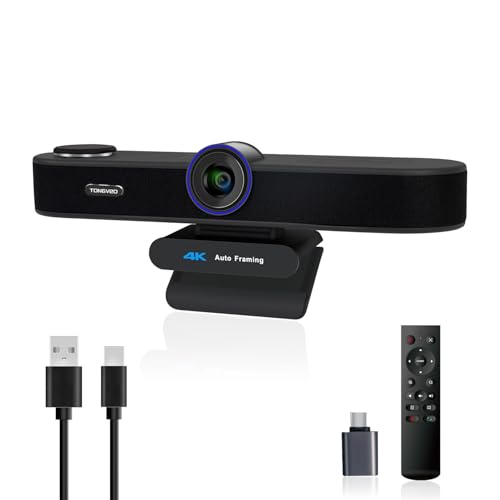
✈【3-in-One 4K Webcam】TONGVEO 4K webcam with microphone and speaker features FHD 4K lens, adopts 1/2.8 inch 8.29 Megapixel Ultra HD sensor, Sensor, up to 3840*2160 resolution at 30fps which delivers crisper image and clearer video for a professional conference, the webcam 4K built-in dual microphones array and a 3W speakers, providing an unparalleled audio-visual experience for any video calls,Ideal for for a professional conference,live streaming, online teaching, recording, and gaming
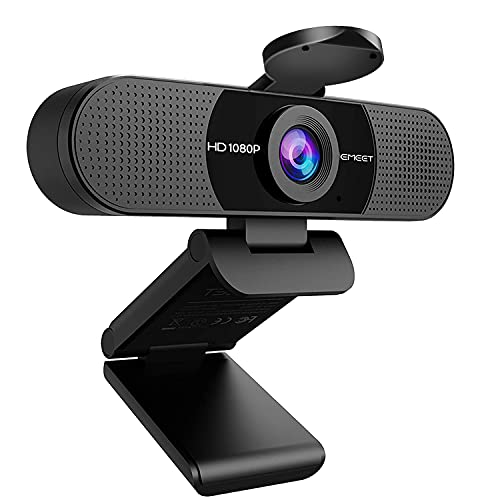
Full HD 1080P Webcam with Cover for Video Calls - EMEET computer webcam provides design and Optimization for professional video streaming. Realistic 1920 x 1080p video, 5-layer anti-glare lens, providing smooth video. The fixed focal length makes the object in the focal length range of 11.8-118.1 inches, so as to provide a clearer image. The C960 usb webcam has a cover and can be removed automatically to meet your needs for protection. It is a great choice for home office.

Best Android video meeting quality
2. Notion: The All-in-One Workspace

Notion offers a comprehensive solution for organizing your thoughts and projects all in one place. With features like note-taking, databases, and task management, you can design your workspace to fit your unique needs. Imagine having everything from calendars to kanban boards easily accessible, creating a collaborative environment for your team.
To effectively use Notion, customize templates that suit your workflow and share them with your team for better collaboration. You can also explore budget-friendly alternatives like open-source tools that offer similar functionalities. This flexibility enhances your creative process and emotional satisfaction while working.
Here are some ways to leverage Notion effectively:
– Create shared pages for brainstorming and project outlines
– Embed relevant files and images to centralize information
– Use templates to streamline new project setups
Notion’s minimalist design pairs beautifully with your home office decor, fostering a serene workspace that invites productivity.
Recommended Products
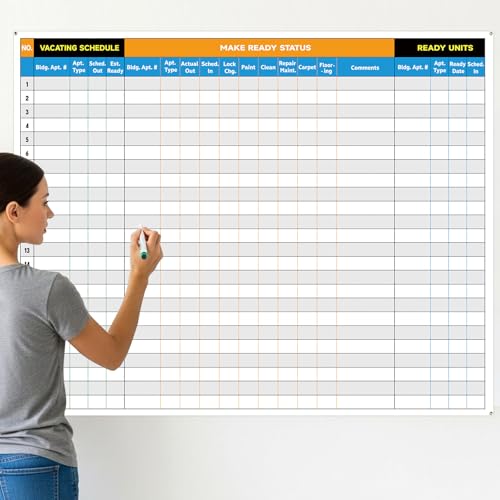
Extra Large Surface: this large dry erase project management board provides 36 x 45 inches of reusable writing space for planning and tracking multiple projects; Whether applied as a property make ready board or office whiteboard, the generous size accommodates budgets, timelines, and task lists; It works nice in real estate offices, apartment communities, and corporate meeting rooms where visual project tracking is needed

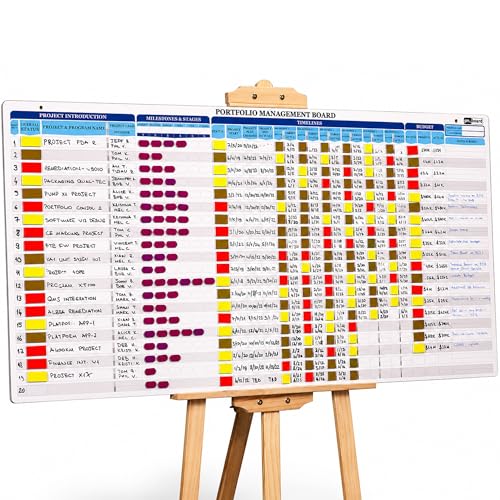
Manage Up to 20 Projects at Once: Track programs, portfolios, products, or sales pipelines with a large-format project planner board designed for executive and PMO-level portfolio management
Notion: The All-in-One Workspace
Editor’s Choice

Simple Houseware Mesh Desk Organizer with Sliding Drawer, Double Tray an…


Simple Trending 7 Tier Desk File Organizer, Letter Tray Paper Organizer …

OPNICE Desk Organizers and Accessories, 5-Tier Paper Organizer Letter Tr…

Marbrasse Desk Organizer with File Holder, 5-Tier Paper Letter Tray Orga…

Wisuce Bamboo Desk Drawer Organizer, Desktop Organizer with Drawers Tabl…
📹 Related Video: Become a Notion Expert in 20 minutes | Notion Tutorial for Beginners (Full Guide)
3. Focus@Will: Music for Maximum Concentration
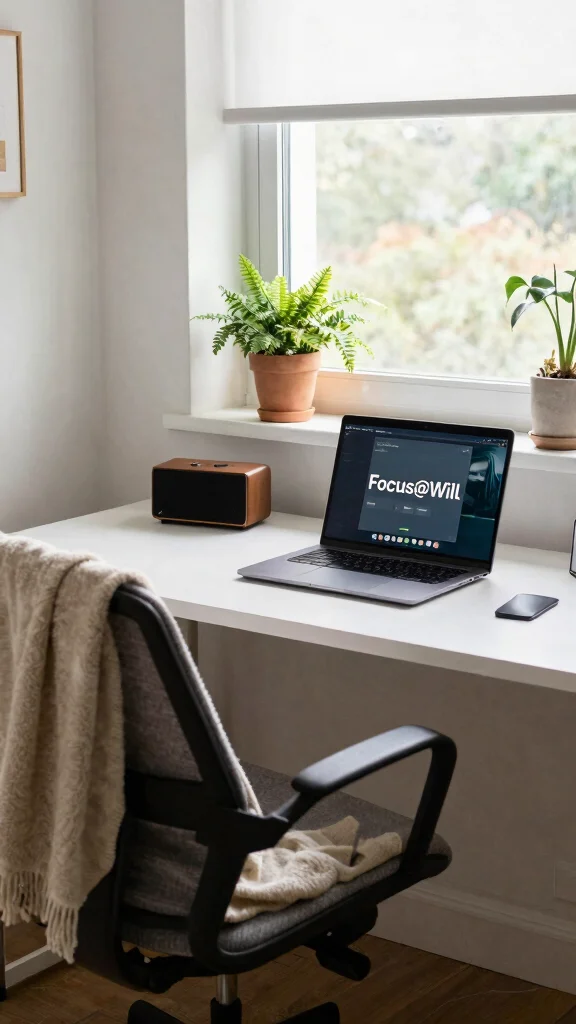
Focus@Will is an innovative tool that uses specially designed music to enhance your concentration. This platform offers various channels, each tailored to different working styles, helping you get into the zone quickly. It’s especially beneficial for remote workers who face distractions in their home offices, as the right music can transform your workspace into a focus-friendly zone.
Incorporate Focus@Will into your daily routine to establish a consistent work atmosphere that boosts your time management skills. For those on a budget, consider exploring similar free playlists on streaming services. This auditory environment not only aids in concentration but also contributes to a more enjoyable working experience.
Here are some tips to get started with Focus@Will:
– Use music channels that fit your personal working style
– Create personalized playlists for different tasks
– Listen to background tracks that minimize distractions
By integrating Focus@Will into your workflow, you can cultivate a productive atmosphere that enhances your overall work performance.
Ever notice how the right soundtrack can turn a crowded kitchen into a focused workspace? With Focus@Will, you dial in focus fast, turning remote work productivity tools into real wins for your day.
Recommended Products

[True Pomodoro Presets for Instant Focus] Jump straight into productive sessions with preset 5-minute break and 25-minute work timers—no setup needed. Designed for the classic Pomodoro technique, it helps you maintain rhythm without distraction

Flexible pomodoro modes for any workflow. Supports both classic 25-5 min pomodoro mode and fully customizable work and break intervals, allowing you to tailor focus sessions to your own rhythm. Whether you prefer structured productivity or flexible time blocks, this timer adapts to different study, work, or creative routines with ease

TIME MANAGEMENT — The 60-minute learning clock assists with organization and concentration among tasks. The desk timer is ideal for kids and adults to improve time management and productivity while completing activities
Focus@Will: Music for Maximum Concentration
Editor’s Choice

Bose QuietComfort Headphones – Wireless Bluetooth Headphones, Active Ove…

Soundcore by Anker Q20i Hybrid Active Noise Cancelling Headphones, Wirel…

JBL Tune 770NC – Adaptive Noise Cancelling with Smart Ambient Wireless O…

Soundcore Q30 by Anker, Hybrid Active Noise Cancelling Headphones, Multi…

Jabra Evolve2 75 PC Wireless Headset with Charging Stand and 8-Mic Techn…
4. Slack: Seamless Team Communication

In remote work settings, effective communication is crucial for team success. Slack transforms team interactions by providing a platform for messaging, file sharing, and real-time collaboration. Imagine a digital workspace where discussions flow effortlessly, allowing everyone to contribute and stay informed.
To maximize Slack’s capabilities, organize your channels by projects or topics to streamline communication. You can also customize notifications to ensure you only receive updates that matter to you. This tool fosters a strong sense of team cohesion, making it easier to keep everyone aligned on goals.
Here are some effective ways to use Slack:
– Organize conversations with dedicated channels and threads
– Share files easily to enhance collaboration
– Use custom emojis to add a personal touch to chats
Utilizing Slack effectively can significantly enhance collaboration among remote teams, ensuring that everyone remains connected and informed.
Recommended Products

New Adjustable Multifunctional Stand : 2025new upgraded ring light, using a new design concept. Perfectly circumvent the traditional clip-on ring light poor fixity and screen unfriendly problems. With a stretchable horizontal plate, 2-2.5 inches, it can perfectly match notebook & desktop computers and securely fix on straight or curved screens, and the main body of the stand adopts an adjustable design, 6.5-8.5inch, providing solutions for a wider range of usage scenarios

Natural skin tones, radiant look: Logitech’s TrueSoft technology delivers balanced, full-spectrum LED light with cinematic color accuracy and optimal lighting for video conferencing or Zoom meetings

5. Todoist: Your Task Management Powerhouse
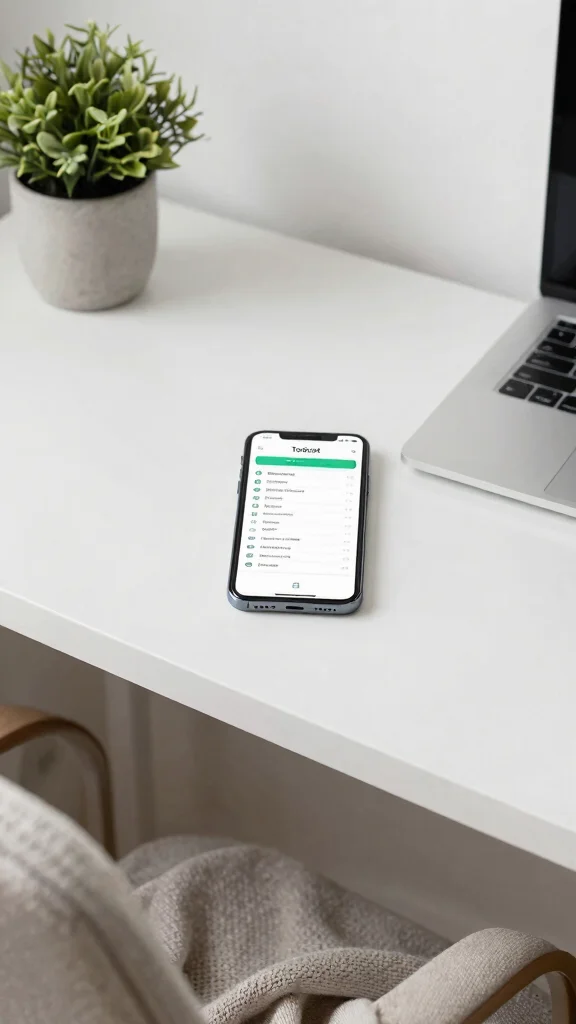
Todoist is an exceptional task management app that empowers you to prioritize and organize your workload efficiently. With its user-friendly interface, you can categorize tasks, set deadlines, and even visualize your productivity trends. This is particularly crucial for remote workers looking to maintain an organized workflow.
To get the most out of Todoist, take advantage of its label and filter features for better organization. You can explore free alternatives that offer similar functionalities for budget-friendly options. This app helps you stay on top of your tasks and fosters a productive home office environment.
Here are some ways to enhance your experience with Todoist:
– Use task labels and filters for better organization
– Integrate with other apps for increased functionality
– Set reminders to keep you accountable
With Todoist, you can transform your home office into a productivity powerhouse, ensuring that every task is accounted for and completed.
Recommended Products

✅ POWERFUL SCRUM & KANBAN KIT: This professional PATboard full toolset is the ultimate scrum and kanban kit for magnetic surfaces. The set includes 137 items, perfect to transform any whiteboard into a full scrum board or kanban board.


What you will get: BOHO seat signals posters includes 20 round bohemian decorations and 40 adhesive dots, the size of each poster is approximately 6*6inches. You can use adhesive dots to glue posters anywhere you want.
Todoist: Your Task Management Powerhouse
Editor’s Choice
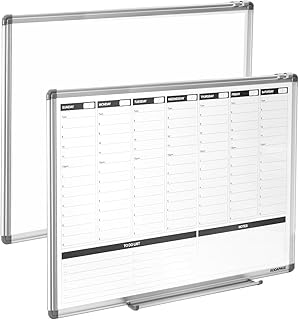
Weekly Dry Erase Board, Weekly Planner whiteboard with Hourly time Slots…
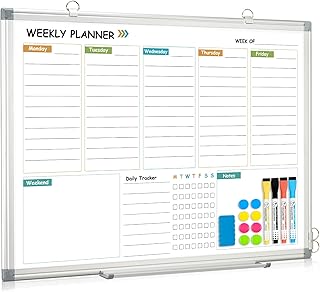
WALGLASS Weekly Dry Erase Calendar Whiteboard for Wall, 24″ x 18″ Double…

Amazon Basics 24″ x 36″ Monthly Whiteboard Calendar with Cork Board, Dry…

U Brands Magnetic Dry Erase 4-in-1 Calendar White Board, 24″ x 18″, Silv…

Magnetic Weekly Planner for Fridge – 17×12” Stain-Resistant Dry Erase Wh…
📝 Personalize Your Workspace Today
Transform your remote work environment with creative ideas to enhance productivity and style in your home office.
6. Google Drive: Organize Your Files in the Cloud
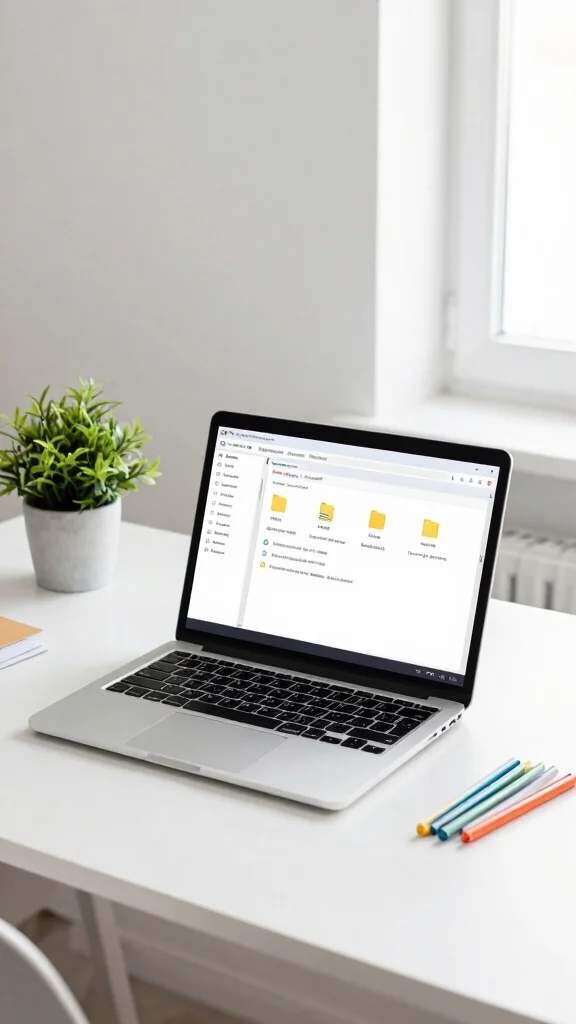
Google Drive is an indispensable tool for remote workers, offering a cloud-based platform for file storage and collaboration. With capabilities to create and share documents, spreadsheets, and presentations, it’s perfect for team projects, ensuring everyone stays on the same page.
To optimize your use of Google Drive, organize your files into clearly labeled folders for easy access. Take advantage of the sharing options to collaborate effectively with your team. This tool promotes better organization, making it easy to find important documents when you need them.
Consider these strategies for using Google Drive:
– Access files from any device with an internet connection
– Share documents easily for collaboration
– Utilize real-time editing features for teamwork
By integrating Google Drive into your workflow, you can maintain an organized home office, ensuring essential files are always accessible.
Did you know 90% of remote teams finish projects 20% faster when Drive folders are clearly labeled? Keeping files organized in Google Drive—one of the essential remote work productivity tools—saves minutes every day and makes collaboration smoother for everyone on the team.
Recommended Products

TIME MANAGEMENT — The 60-minute learning clock assists with organization and concentration among tasks. The desk timer is ideal for kids and adults to improve time management and productivity while completing activities

[ Intuitive Visual Time Management ] This visual timer helps children “see” time with a shrinking color wheel—no numbers, no confusion. Whether it’s 10 minutes of video time, 20 minutes of reading, or timing boiling eggs in the kitchen, kids can watch the countdown fade visually. It’s perfect for kids with ADHD or autism who learn best through visuals, turning abstract time into a friendly, manageable companion. As a dedicated timer for kids, it turns every time-based task into a clear, stress-free experience

Stay Focused with Pomodoro Technique: Master your time and boost productivity with preset Pomodoro cycles: focus for 25 minutes, then rest for 5 minutes. Ideal for ADHD users, students, and professionals, Ticktime helps you enter deep focus fast—no phone distractions, just flip, start, and work efficiently with visual time feedback
Google Drive: Organize Your Files in the Cloud
Editor’s Choice

MINDEPOT Desk File Organizer 7 Sections Upright Mesh File Sorter Organiz…
Simple Trending 7 Tier Desk File Organizer, Letter Tray Paper Organizer …

Marbrasse 6 Tier Paper Organizer Letter Tray – Mesh Desk File Organizer …

Simple Houseware 5 Section Upright File Sorter Organizer, Black – 2 Pack

Pendaflex Portable Desktop File, Document Holder for Home and Office, Pl…
7. Forest: A Unique Approach to Time Management
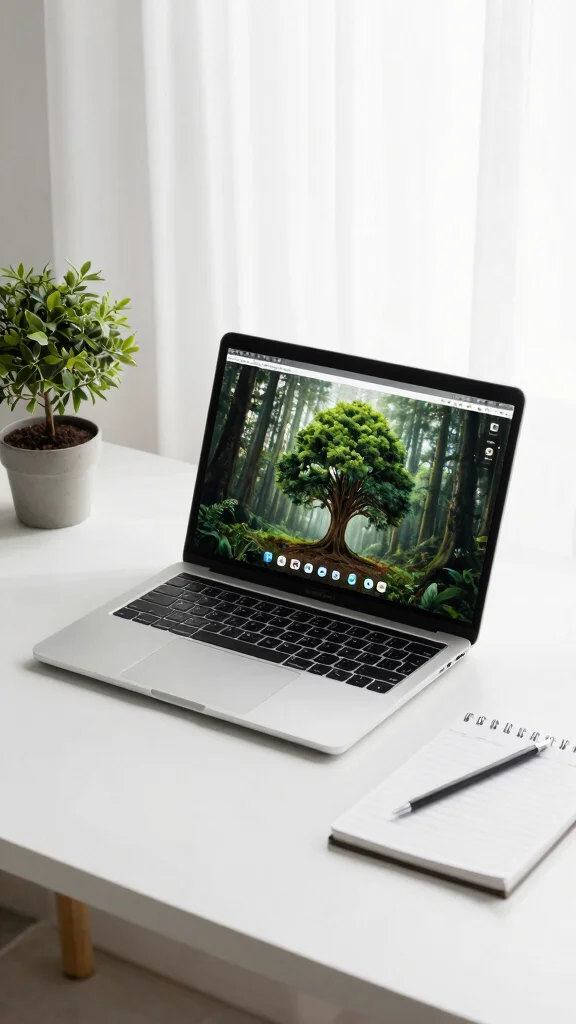
Forest introduces a fun and gamified approach to time management, allowing you to grow a virtual tree while you focus on your tasks. If you leave the app, your tree dies, providing a unique motivation to stay on track. This engaging method can be a delightful addition to your productivity toolkit for remote work.
To incorporate Forest into your routine, set specific work intervals and watch your virtual forest flourish. For those seeking budget-friendly options, explore free alternatives that offer similar gamification features. This creative approach not only helps with time management but also adds a playful element to your workday.
Here are some tips for using Forest effectively:
– Gamify your focus sessions to boost productivity
– Watch your forest grow as you complete tasks
– Use the app to contribute to planting real trees
By embracing Forest, you create a motivating atmosphere that encourages focus and enhances your workspace ambiance.
Recommended Products

【3 Color Lighting Mode & 10 Brightness Levels】: The video conference lighting kit for laptop is bright but have a built in dimmer for less brighter settings,6 inch desktop selfie ring light with 3 kinds of light modes: white light, warm yellow, white + warm yellow, 10 brightness levels adjusted , built-in 92 Pieces LED bulbs, not only its brightness can eliminate the image noise and make the color of your face more saturated, but also does it make the quality of your videos massively better

Video-enable huddle and small rooms: All-in-one form factor allows for easy setup of videoconferencing in small and huddle rooms

【Dual Webcam Light for Video Calls】 Different from the laptop light for video conferencing on the market, our computer lighting for video conferencing are composed of two stream light bars for monitor, providing brighter and more even camera light, bringing you a more professional podcast light effect and showing your best. The zoom light for video recording is also equipped with two control modes, you can control it by touch or remote control
8. Zoom: Stay Connected with Video Conferencing

Zoom has become a staple for remote work, facilitating easy and accessible video conferencing. Whether you’re conducting a quick check-in or engaging in a detailed team meeting, Zoom allows you to connect face-to-face, fostering stronger relationships despite the distance.
To utilize Zoom effectively, take advantage of features like calendar integrations for easy scheduling. You can also leverage the recording feature to capture important discussions for future reference. This platform ensures effective communication, making it an essential tool in your remote work toolkit.
Here are some effective ways to use Zoom:
– Schedule meetings easily with calendar integration
– Use screen sharing for collaborative presentations
– Record sessions for later review
By incorporating Zoom into your remote work routine, you enhance communication and collaboration, making it a vital part of your home office essentials.
Recommended Products

Tempered Glass Writing Surface:Made with tempered glass, this dry erase board offers a smooth writing experience and allows clean erasing without leaving residue, even with...
Zoom: Stay Connected with Video Conferencing
Editor’s Choice

Logitech Brio 4K Webcam, Video Calling, Noise-Cancelling mic, HD Auto Li…

Logitech C922x HD Pro PC Webcam, Full HD 1080p/30fps or 720p/60fps Video…

Logitech C920x HD Pro PC Webcam, Full HD 1080p/30fps Video, Clear Audio,…

Logitech for Creators Litra Glow Premium LED Streaming Light with TrueSo…

Logitech Zone Vibe Wireless Bluetooth Headphones with Noise Canceling Mi…
Conclusion

Enhancing your remote work productivity doesn’t have to be a struggle. With these eight tools, you can create a home office that is not only stylish and minimalist but also highly efficient. Each tool serves to streamline your workflow, making tasks easier and encouraging collaboration. Say goodbye to distraction and hello to a beautifully organized workspace that fuels your productivity! Share your favorite tools below or let us know which ones you plan to try!
Note: We aim to provide accurate product links, but some may occasionally expire or become unavailable. If this happens, please search directly on Amazon for the product or a suitable alternative.
This post contains Amazon affiliate links, meaning we may earn a small commission if you purchase through our links, at no extra cost to you.
Frequently Asked Questions
What are the essential remote work productivity tools for a minimalist home office?
For a minimalist home office, focus on a core set of remote work productivity tools: a reliable time management app, a simple digital planning tool, and a streamlined remote team collaboration platform. Keep your desk uncluttered and choose one calendar, one to‑do list, and one chat/video app to avoid notification overload.
Designate a dedicated workspace, use workspace organization strategies like cable management and vertical storage, and set clear daily rituals so your tools serve you—not the other way around. This approach boosts remote work productivity while maintaining a calm, minimalist aesthetic.
How can I optimize workspace organization to boost remote team collaboration in a minimalist home office?
Start by creating two zones: a focused work area and a light collaboration corner. Declutter surfaces, install good cable management, and store supplies out of sight to support workspace organization without visual noise.
Then connect your minimalist space to your team with simple, shared tools for remote team collaboration, like a central document hub and a quick‑check-in board. Keep notifications low and use a single place for meeting notes to keep everyone aligned with less mental clutter.
Which home office essentials help with time management when working remotely?
Prioritize home office essentials that support smooth time management: a comfortable ergonomic desk and chair, a clean monitor setup, and cable management to keep distractions away. Add a reliable time management app to plan your day, plus a digital planning tool for task lists and deadlines. A dedicated timer or focus app (e.g., Pomodoro style) can turn deep work into a habit without adding clutter to your desk. These choices streamline your day and boost remote work productivity.
What are the best digital planning tools and time management apps for remote workers?
Great picks include digital planning tools like Notion or Trello for structure, plus calendars and note apps that sync across devices. Pair with time management apps like a calendar approach (Google Calendar) and a focus timer to protect deep work blocks. For a minimalist setup, keep integrations lean: one calendar, one task manager, one notes app, and one collaboration space. Regularly review templates to stay efficient and reduce clutter.
How can I measure the impact of remote work productivity tools on my productivity and focus?
Track practical metrics such as focus time, tasks completed, deadlines met, and time spent in collaboration vs. solo work. Use your digital planning tools to log tasks and measure progress, and review weekly to spot trends. If something isn’t helping, tweak your setup: swap out a tool, simplify your workflow, or adjust your workspace organization to maintain a calm, productive environment. The goal is sustainable gains in remote work productivity with less clutter.
Related Topics
remote work productivity
minimalist home office
workspace organization
digital planning tools
time management apps
remote team collaboration
home office essentials
modern design
productivity hacks
beginner friendly
easy setup
focused workspace